· Rehman Ahmad · Tutorials · 6 min read
How to Paste Urdu from Word, WhatsApp, or a Website into InPage
Copy Unicode Urdu from Word, WhatsApp, or a website, convert it into legacy InPage-compatible text, and paste it into a compatible InPage workflow.
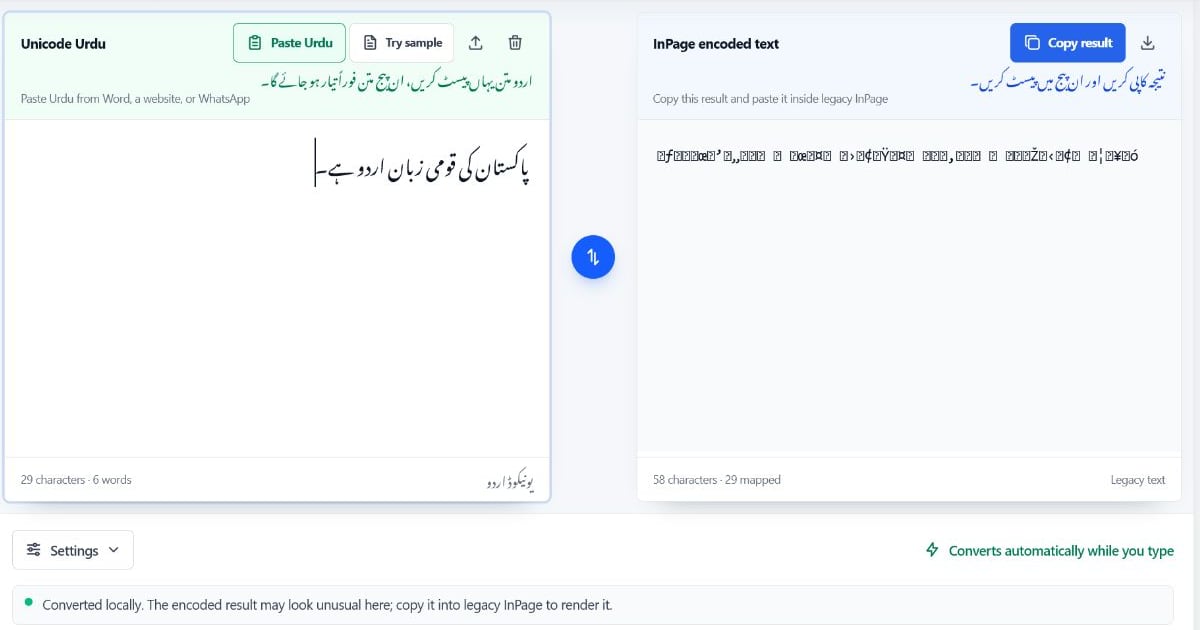
Urdu copied from Word, WhatsApp, or a modern website is usually Unicode Urdu. Older InPage workflows may expect a different legacy character mapping, so pasting that Unicode text directly into InPage can produce incorrect characters or text that does not display as expected.
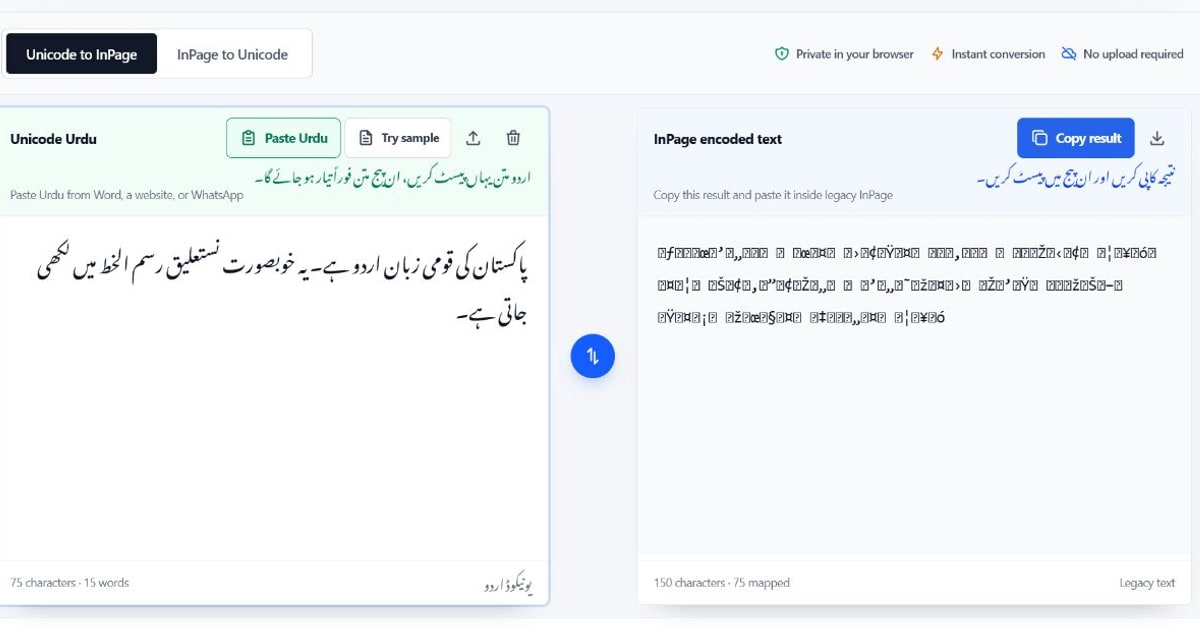
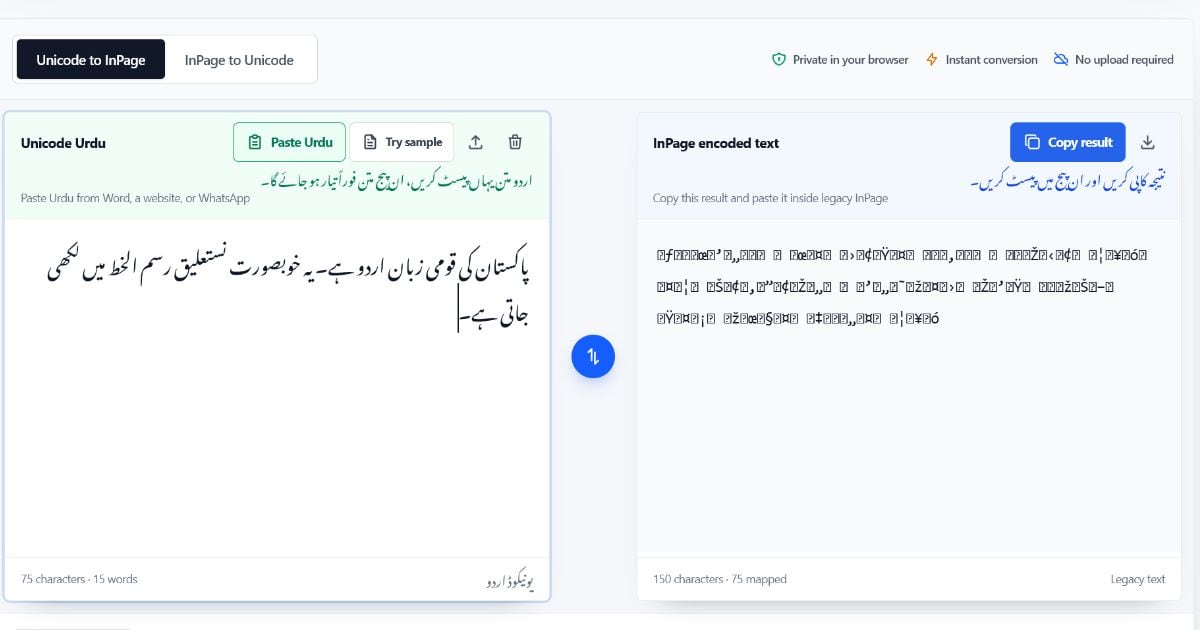
Quick solution: Copy the Urdu text, open the free Unicode to InPage converter, keep Unicode to InPage selected, and choose Paste Urdu. The result updates automatically. Choose Copy result, then paste it into a compatible InPage text frame.
اردو میں مختصر رہنمائی: Word، WhatsApp یا ویب سائٹ سے صرف مطلوبہ اردو متن کاپی کریں، Unicode to InPage میں پیسٹ کریں، پھر نتیجہ کاپی کر کے ان پیج میں جانچیں۔
This guide covers the extra cleanup needed for Word, WhatsApp, and websites. For the complete converter walkthrough, read How to Convert Unicode Urdu to InPage. For an explanation of the two formats, see Unicode Urdu vs InPage text.
Before You Copy Anything
Keep the original source open until the text is correct in InPage. The converter processes plain text, not a Word document, website layout, or an .inp file. It will not preserve bold text, colors, tables, images, page margins, or font sizes.
Before converting, remove anything that does not belong in the destination text frame:
- website navigation, advertisements, captions, and email signatures;
- emojis, decorative symbols, and unusual characters that legacy InPage may not support;
- accidental double spaces and unnecessary manual line breaks; and
- text you do not have permission to reproduce.
For a long document, begin with a short paragraph. This is not a technical limit of the tool; it is the fastest way to confirm that the destination InPage version, font, and document workflow accept the converted result.
The Reliable Workflow
- Copy only the Urdu text you need from Word, WhatsApp, or a website.
- Open the Unicode to InPage converter.
- Keep Unicode to InPage selected and use Paste Urdu or press
Ctrl + Vin the left editor. - Read the conversion check and review any unsupported-character warning.
- Choose Copy result from the right editor.
- Paste the output into the required InPage text frame.
- Compare names, numbers, punctuation, and line breaks with the original source before continuing.
The encoded output can look like symbols in the browser. That is normal for a legacy InPage-compatible result. Do not edit that output in the browser; copy it and verify the visible Urdu after pasting into InPage.
Copying Urdu from Microsoft Word
Word is a common place to draft Unicode Urdu, but its document styling does not travel through a plain-text conversion.
What to Copy
Select the Urdu body text you want to use, then press Ctrl + C. Avoid selecting headers, footers, tables, images, page numbers, or comments unless you plan to rebuild them in InPage.
If the Word document contains mixed English and Urdu, copy a short mixed-language line first. Check its reading order after pasting into InPage before converting the whole section.
What to Rebuild in InPage
Apply the destination font, type size, line spacing, heading treatment, columns, and paragraph alignment in InPage. Converting text does not carry Word’s styling with it.
Copying Urdu from WhatsApp
WhatsApp messages are usually already Unicode Urdu, so the central task is removing content that does not belong in a print layout.
Check These Details
- Remove emojis and reaction symbols, which may not have a useful legacy InPage equivalent.
- Review intentional line breaks. A message that reads well on a phone may need normal paragraph flow in a document.
- Check phone numbers, dates, URLs, and English words after pasting into InPage.
- Copy the message text itself rather than surrounding chat labels, timestamps, or forwarded-message notices.
If the copied text contains a hidden direction mark or an unusual spacing character, the converter may preserve it or flag an unsupported character. Remove the specific character in the Unicode source and convert again if the result looks wrong.
Copying Urdu from a Website
Websites often include extra interface text around the article you want. Copy only the visible body text and remove navigation labels, share buttons, advertisement labels, and captions you do not need.
Confirm the Source Is Real Text
Try selecting a single Urdu word. If you can select individual characters and use the browser’s search command to find the word, it is likely live text. A scanned newspaper image or a flattened PDF needs Urdu OCR before it can become editable Unicode text.
Clean Website Text Before Conversion
Remove repeated headlines, promotional lines, web addresses, and unnecessary blank lines. Non-breaking spaces or unusual punctuation can appear when content is copied from the web, so use the conversion check and compare the final InPage text with the original page.
Common Problems After Pasting into InPage
| What happens | Likely reason | What to do |
|---|---|---|
| The browser result looks like symbols | It is legacy InPage-compatible text | Copy it without editing and paste it into the compatible InPage text frame |
| The pasted result is still wrong in InPage | The destination may use a different version, font, or mapping | Test a simple paragraph and confirm the expected InPage workflow with the printer or document owner |
| An emoji or unusual symbol is missing | No supported legacy match exists | Remove or replace it in the Unicode source, then convert again |
| Numbers or English words appear in an unexpected order | The line mixes right-to-left Urdu with left-to-right content | Check the whole line in InPage and adjust the document’s paragraph or text-frame settings as needed |
| The copied source is an image or scanned PDF | It is not editable Unicode text | Use an Urdu OCR workflow, then proofread before conversion |
The Fix reversed numbers setting is for the reverse InPage to Unicode direction. Do not use it as part of the normal Word-, WhatsApp-, or website-to-InPage workflow.
Word Documents, Text Files, and .docx Uploads
The converter accepts copied text and plain-text files. It does not upload or read a Word .docx document directly. Open the file in Word, copy the Urdu text, and paste it into the converter.
If you have a .txt, .text, or .uni file containing Unicode Urdu, you can open that plain-text file with the converter’s file control. Check the result in InPage just as you would after clipboard paste.
When You Need the Opposite Direction
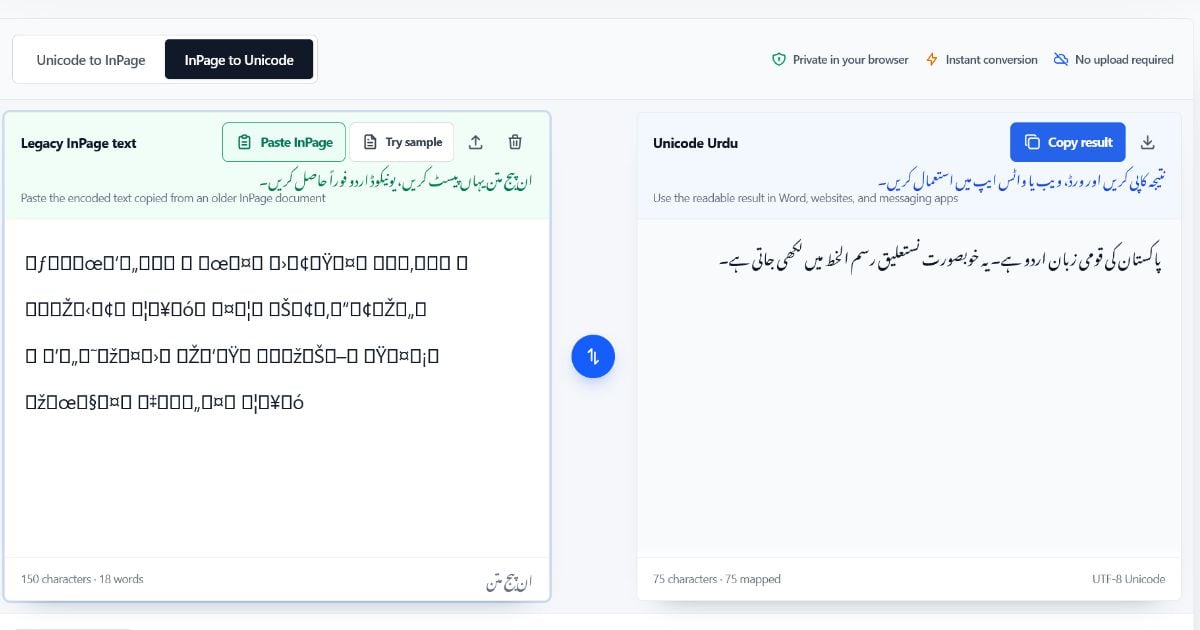
This guide starts with readable Unicode Urdu and prepares it for a legacy InPage workflow. If text copied out of an older InPage document instead looks like symbols in Word, WhatsApp, or a browser, use the reverse InPage to Unicode mode.
Read Why Does InPage Text Look Like Symbols? How to Convert It Back to Unicode for the reverse workflow, diagnostic checks, and number-order guidance.
Frequently Asked Questions
Can I preserve Word formatting when I paste Urdu into InPage?
No. The converter works with plain text. Reapply fonts, colors, bold text, sizes, columns, and spacing in InPage.
Can I upload a Word .docx file directly?
No. Copy the Urdu text from Word and paste it into the converter, or open a supported plain-text file such as .txt, .text, or .uni.
Why does the converted result look unreadable in my browser?
The forward conversion produces legacy values that a normal browser does not render as Urdu. Copy the result and check it inside the compatible InPage document.
Is my text uploaded to a server?
No. The converter runs in your browser and does not upload the text for conversion. Clipboard access is still controlled by your browser’s permission settings.
Paste Urdu into InPage
Start with a short, clean Unicode paragraph, convert it, and verify it in the destination InPage document before processing the rest of your work.