· Rehman Ahmad · Tutorials · 9 min read
Why Does InPage Text Look Like Symbols? How to Convert It Back to Unicode
Learn why copied InPage Urdu appears as symbols and how to convert recognized legacy InPage text into readable, searchable Unicode Urdu.
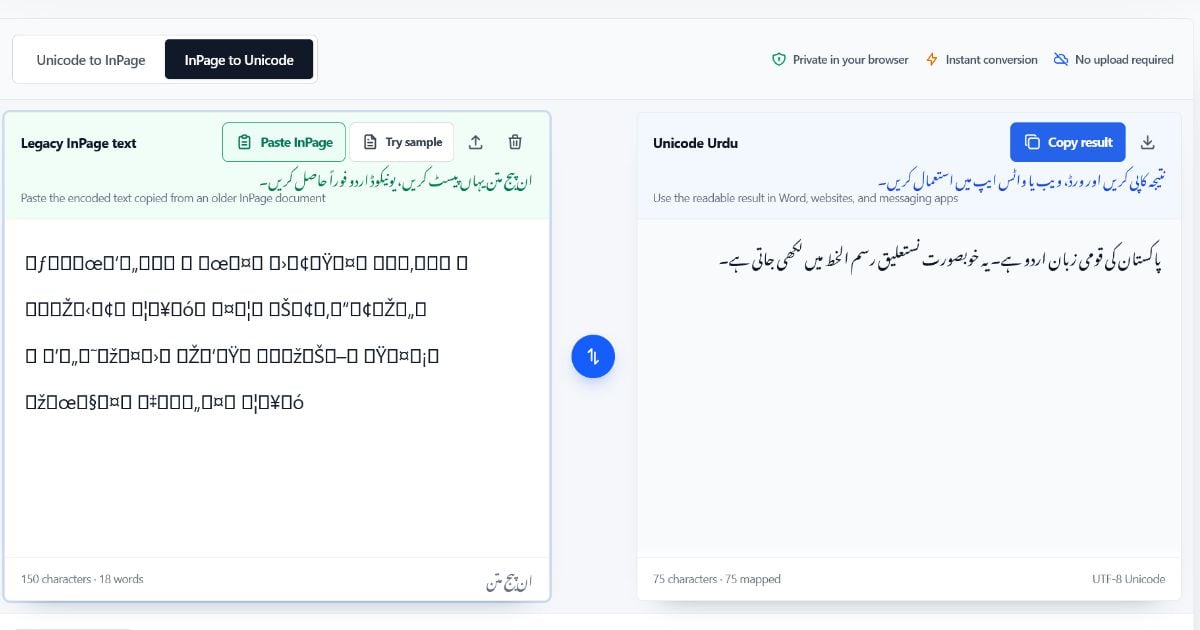
If Urdu copied from an older InPage document turns into symbols, punctuation, or Latin-looking characters in Microsoft Word, WhatsApp, email, or a browser, the text is probably using a legacy InPage character mapping rather than Unicode. The Urdu has not necessarily been deleted. The receiving app is interpreting the copied values differently from InPage.
Quick solution: Open the free InPage to Unicode converter, select InPage to Unicode, and paste text copied directly from InPage. Conversion starts automatically in your browser. Review the result, then choose Copy result.
اردو میں مختصر رہنمائی: اگر ان پیج سے کاپی کیا ہوا متن نشانوں کی طرح دکھے تو InPage to Unicode منتخب کریں، متن پیسٹ کریں اور پڑھنے کے قابل اردو نتیجہ کاپی کریں۔
This guide explains why InPage text can look unreadable, how to convert recognized legacy InPage text back to Unicode Urdu, and what to check when conversion alone does not solve the problem.
If your source already appears as normal Urdu in Word, WhatsApp, or a website, use the guide to pasting Unicode Urdu into InPage instead. For a format-level explanation, read Unicode Urdu vs InPage text.
Why InPage Text Looks Like Symbols Outside InPage
Unicode gives each supported character a standard code that modern systems can recognize. Urdu written in Unicode can therefore remain editable across Word, websites, databases, search tools, and messaging apps, provided the app supports Urdu shaping and right-to-left text.
Some older InPage workflows use non-Unicode character mappings. InPage and compatible fonts know how to interpret those stored values as Urdu. Another app may interpret the same copied values as ordinary Latin characters or punctuation, so a sentence that looked correct in InPage appears unreadable after pasting elsewhere.
This is an encoding or character-mapping problem, not simply a font-style problem. A converter must map the recognized legacy values to their corresponding Unicode Urdu characters.
First Identify the Type of Text Problem
Not every broken-looking Urdu paragraph needs an InPage-to-Unicode conversion. Use this quick check before changing the text:
| What you see | Most likely issue | What to try |
|---|---|---|
| Symbols, punctuation, or Latin-looking text after copying from InPage | Legacy InPage mapping | Use InPage to Unicode mode |
| Empty squares or replacement boxes | The selected font lacks those Urdu glyphs | Select a Unicode Urdu font such as Noto Nastaliq Urdu, Gulzar, or Jameel Noori Nastaliq |
| Correct Urdu letters that appear disconnected | The app or field lacks proper Urdu shaping or RTL support | Enable right-to-left paragraph direction and use an Urdu-capable app |
| Correct words but dates or numbers are in the wrong order | Bidirectional number ordering | Try Fix reversed numbers, then verify each number |
| No selectable text in a scanned page or image | The source is an image, not editable text | Use Urdu OCR first, then proofread the result |
If the text already contains readable Urdu characters, do not convert it merely because the font or alignment looks wrong. Fix the font or right-to-left layout first.
How to Convert InPage Symbols Back to Unicode Urdu
For the best result, begin with a short paragraph from the original InPage document. Once you confirm that its words, names, and numbers convert correctly, process the remaining text in manageable sections.
Step 1: Copy Editable Text from InPage
Open the original .inp document in InPage. Select the required text with InPage’s text tool and press Ctrl + C.
The online converter processes copied or plain text; it does not open the .inp document file itself. If the document is flattened as an image or outline, you will need the editable source text or OCR.
Step 2: Open the Converter
Go to the Unicode to InPage and InPage to Unicode converter. It works in a modern browser on desktop or mobile, although copying directly from InPage is normally done on the Windows computer where the document is open.
Step 3: Select InPage to Unicode
Choose the InPage to Unicode tab. The left panel changes to Legacy InPage text, and the right panel becomes the Unicode Urdu result.
This direction matters. The other tab performs the opposite task and prepares Unicode Urdu for a legacy InPage workflow.
Step 4: Paste the Legacy InPage Text
Choose Paste InPage for one-click clipboard paste, or click in the left text box and press Ctrl + V. The tool converts the pasted text automatically; you do not need to press another conversion button.
The conversion runs locally in the browser. Your text is not uploaded to a server by this tool.
Step 5: Review the Unicode Urdu Result
Read the converted Urdu in the right panel. The converter reports whether recognized text units were mapped and warns when it cannot detect legacy InPage codes or encounters unsupported characters.
If dates or number groups appear reversed, enable Fix reversed numbers and compare the result with the original document. Do not apply the option blindly to financial figures, phone numbers, references, or mixed Urdu-English passages.
Step 6: Copy and Use the Result
Choose Copy result, then paste the Unicode Urdu into Word, Google Docs, WordPress, a CMS, WhatsApp, email, or another Unicode-compatible app. Save a Unicode master copy before changing fonts or rebuilding the page layout.
How to Check Whether Conversion Worked
Automatic conversion should always be followed by a quick editorial check, especially for archival, academic, legal, or print material.
- Compare the opening and closing lines. This catches missing selections or paragraphs that were not copied.
- Check names and specialist words. Proper nouns, uncommon letters, and technical terms deserve close attention.
- Check every number. Review dates, prices, page references, phone numbers, and percentages against the source.
- Inspect punctuation and marks. Confirm brackets, quotation marks, Urdu question marks, Kashida, and diacritics where they matter.
- Test editing and search. Try selecting individual Urdu letters and finding a known word with
Ctrl + F. Searchability is a useful sign that you have Unicode text, but it does not prove that every character was converted correctly. - Test the destination. Paste a sample into the actual website, document, or app in which it will be published and check both desktop and mobile display.
Keep the original .inp file until the entire document has been checked. It remains the reference for anything that looks uncertain.
Why Changing the Font Is Not Enough
A font controls how character values are drawn. It does not normally translate one character mapping into another.
Selecting a Nastaliq font may improve correctly encoded Unicode Urdu, but it cannot reliably turn legacy InPage values into Unicode characters. The appearance may change while the underlying text remains unsuitable for search, web publishing, databases, or reuse in another app.
The dependable order is:
- Convert the recognized legacy InPage text to Unicode.
- Verify the actual words and numbers.
- Apply a Unicode Urdu font and right-to-left paragraph direction.
What If the Result Is Still Wrong?
The Converter Says No Legacy Codes Were Detected
Make sure you selected InPage to Unicode and copied the text directly from an editable InPage text block. Text copied from a PDF, screenshot, image, or already converted document may not contain the legacy values this converter recognizes.
Only Some Characters Convert
Legacy documents can contain unusual font mappings, uncommon marks, or text produced by a different workflow. Convert a short sample, note the unsupported characters reported by the tool, and compare them with the source. You may need to correct a few characters manually.
The Urdu Is Readable but Shows Boxes or Broken Joining
That usually points to the destination font or rendering environment. Select a Unicode Urdu font, set the paragraph to right-to-left, and test in an app that supports Arabic-script shaping.
Numbers or Punctuation Move to the Wrong Side
Urdu is right-to-left while many numbers are read left-to-right, so mixed text can be reordered by the destination app. Try Fix reversed numbers, but verify every numeric sequence after conversion. You may also need to set the paragraph direction again after pasting into Word or a web editor.
The Source Is a PDF or Scanned Page
A PDF may contain Unicode text, embedded legacy text, outlined letters, or only page images. First try selecting and copying a short line. If no editable text is available, use an Urdu OCR workflow. OCR recognition and InPage character conversion are different tasks.
What the Converter Can and Cannot Preserve
The converter is designed for plain text. It can map supported legacy character values to Unicode Urdu and preserve unsupported characters for review. It does not recreate a complete InPage document.
The following document features are not preserved in a plain-text conversion:
- font sizes, bold or italic styling, and paragraph spacing;
- columns, margins, page breaks, and text-box positions;
- tables, images, borders, and other page objects;
- text converted to graphic curves or outlines; and
- the
.inpfile structure itself.
Rebuild necessary formatting in the destination app after the text has been converted and checked.
How to Avoid the Same Problem Later
- Keep the original draft in a Unicode-compatible format such as
.docxor UTF-8 text. - Store the Unicode text alongside the finished InPage file and print export.
- Record the InPage version and fonts used for important archive projects.
- Test one paragraph before converting or publishing a long document.
- Keep backups until the Unicode version has been proofread against the source.
Unicode makes Urdu easier to search, edit, index, and reuse, but the final appearance still depends on a suitable font and correct right-to-left layout.
Frequently Asked Questions
Why is my Urdu readable in InPage but not in Word?
The text may use a legacy mapping that InPage interprets as Urdu while Word interprets the copied values differently. Convert the copied text with InPage to Unicode, then choose a Unicode Urdu font in Word.
Can I upload or convert an .inp file directly?
No. This tool converts copied or plain text, not the .inp document file. Open the file in InPage, copy an editable text block, and paste that text into the converter.
Does installing an Urdu font fix the symbols?
Not when the underlying text uses an incompatible legacy mapping. A font can fix missing glyphs or improve Urdu styling, but character conversion is needed to turn recognized legacy InPage values into Unicode.
Can I publish the converted Urdu on a website?
Yes, after proofreading it. Use UTF-8, set the content language to Urdu where appropriate, apply right-to-left direction, and choose a web font with Urdu glyph support. Unicode allows search engines and modern apps to process the text, but it does not guarantee identical rendering on every device.
Is the conversion private?
The converter runs client-side in your browser and does not upload the text to a server. Clipboard access still depends on your browser’s permission settings.
Can I convert Unicode Urdu back to InPage?
Yes. Use the other converter tab and follow the step-by-step guide to converting Unicode Urdu to InPage.
Convert Your InPage Text Now
Open the InPage to Unicode converter, choose InPage to Unicode, and test a short passage copied from your document. The result appears automatically, so you can verify it before converting the rest of the text.