· Rehman Ahmad · Tutorials · 9 min read
How to Type Urdu Online with a Phonetic Keyboard on Mobile and PC
Learn how to turn Roman Urdu into Unicode Urdu, use an on-screen keyboard or voice typing, and move finished text into Word, WhatsApp, websites, or InPage.

To type Urdu online without installing a keyboard, open the free Urdu keyboard and phonetic typing pad, enter one Roman Urdu word such as mera, choose the Urdu spelling میرا, and press Space or Enter. Continue word by word, then copy, download, or transfer the finished Unicode Urdu to the InPage converter.
Quick answer: Type the sound of an Urdu word with English letters, choose the correct Urdu suggestion, and add it to the right-to-left editor. You can also tap Urdu letters directly or use voice typing in a supported browser.
اردو میں مختصر رہنمائی: رومن اردو میں ایک لفظ لکھیں، درست اردو تجویز منتخب کریں اور Space یا Enter دبائیں۔ مکمل عبارت کو کاپی، ڈاؤن لوڈ یا ان پیج کے لیے تبدیل کیا جا سکتا ہے۔
Reviewed against the live tool: This guide was written for the current Urdu typing pad on September 6, 2026. Browser voice-recognition support can change, so the phonetic and on-screen keyboards remain the dependable fallback.
What Is Urdu Phonetic Typing?
Urdu phonetic typing converts the sound of a word written with Latin letters into Urdu script. For example, you can type pakistan, urdu, or kitab and select پاکستان, اردو, or کتاب.
This is different from memorizing a physical keyboard layout. Instead of remembering which key produces each Urdu character, you write a familiar Roman Urdu spelling and choose the intended word. It is especially useful on a computer or phone that does not already have an Urdu keyboard installed.
Roman Urdu does not have one universal spelling system. People may type the same word in several ways, such as kyun, kiun, or kion. That is why a list of suggestions is more useful than silently replacing every input with a single assumed word.
Choose the Best Urdu Typing Method
The online editor offers three input methods. You can use one method or combine them in the same paragraph.
| Typing method | Best for | What to expect |
|---|---|---|
| Phonetic Roman Urdu | Fast everyday writing | Enter a Roman Urdu word and choose from matching Urdu spellings |
| On-screen keyboard | Individual letters, punctuation and corrections | Tap Urdu characters directly without changing the device keyboard |
| Voice typing | Drafting sentences by speaking | Speak Urdu in a supported browser, then proofread the browser-generated result |
Phonetic input is usually the easiest starting point. Use the on-screen keys for a letter or mark that is difficult to express in Roman Urdu. Voice typing can be faster for a rough draft, but names, numbers and uncommon words still need careful review.
How to Type Urdu Online Step by Step
1. Open the Urdu Keyboard
Go to the Urdu keyboard online typing pad. It works in a modern browser and does not require an account or keyboard installation.
The page contains a Roman Urdu input, a suggestion row, a right-to-left Urdu editor, action buttons and an on-screen keyboard. On a phone, these controls stack vertically so the editor and keys remain usable on a smaller screen.
2. Type One Roman Urdu Word
Enter the sound of one word in the phonetic box. Start with ordinary spellings rather than an entire sentence. For example:
merafor میراaapfor آپkitabfor کتابkhushifor خوشیzindagifor زندگی
Typing one word at a time lets the suggestion engine match the current word more accurately and keeps the editor easy to correct.
3. Select the Intended Urdu Spelling
As you type, the tool can show up to ten matching Urdu variants. Select a suggestion with the mouse or touchscreen. With a physical keyboard, use the arrow keys to change the active suggestion, then press Space, Enter, or Tab to add it.
If the first result is not the word you mean, inspect the other suggestions or adjust the Roman spelling. Urdu contains letters with similar sounds, including س, ص, and ث, so pronunciation alone cannot always determine the correct written form.
4. Build and Edit the Sentence
Each accepted word is added to the Urdu editor. The editor follows right-to-left direction, but it still supports ordinary editing actions such as selecting text, deleting a character and placing the cursor inside a sentence.
Use the on-screen keyboard when you need to:
- correct one Urdu letter;
- add Urdu punctuation such as ، or ؟;
- enter a diacritic or special mark;
- type a spelling that is not in the suggestion list; or
- work without a physical keyboard.
Read the whole sentence after composing it. Autocomplete helps with input; it does not replace spelling, grammar or factual review.
5. Copy, Download, or Continue to InPage
When the text is ready, choose the action that matches your destination:
- Copy places the Unicode Urdu on your clipboard for Word, email, WhatsApp, a website or another Unicode-compatible application.
- Download saves the draft as a plain-text file.
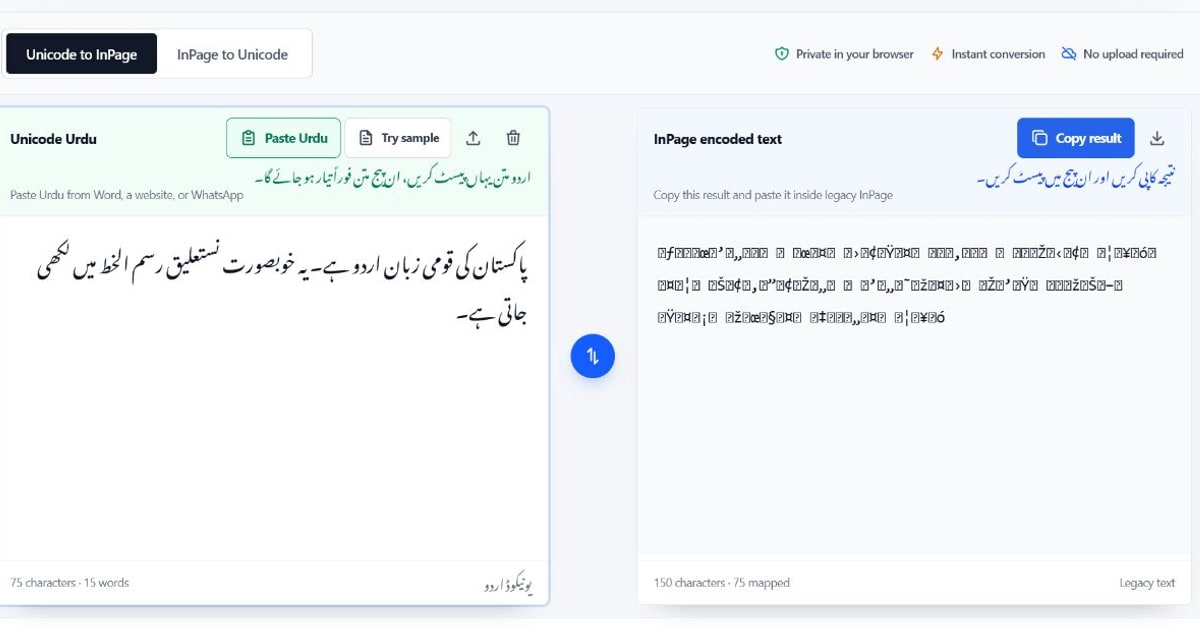
- Convert for InPage transfers the draft to the Unicode to InPage converter on the same device.
Keep a Unicode copy as your master text. Unicode is the suitable format for websites, search, messaging, databases and most modern document editors. Convert only the text that must enter a compatible legacy InPage workflow.
How to Type Urdu on a Mobile Phone
You do not need to replace your phone keyboard to use the online phonetic method. Open the tool in the mobile browser, type a Roman Urdu word with the keyboard you already use, and tap the correct Urdu suggestion.
For a smoother mobile workflow:
- Type short phrases rather than a full paragraph before reviewing.
- Tap inside the Urdu editor to correct the cursor position.
- Rotate the phone only if you want more horizontal space for the on-screen keys.
- Copy the final Unicode text and paste it into the destination app.
- Recheck mixed Urdu-English lines because the two writing directions can affect visual order.
The exact paste menu varies between Android, iPhone and individual apps, but the Urdu content remains Unicode text.
How Urdu Voice Typing Works
Select Start voice typing, allow microphone access if the browser asks, and speak clearly in Urdu. A supported browser sends recognized words into the Urdu editor. Pause between sentences and proofread the transcript before using it.
Voice recognition is controlled by the browser and operating environment. It may be unavailable, may require an internet connection, or may send audio to the browser provider’s speech service. The phonetic suggestions and on-screen keyboard do not need microphone access and remain available when voice typing is unsupported.
Check these items especially carefully after dictation:
- personal names and place names;
- English words spoken inside an Urdu sentence;
- dates, prices and phone numbers;
- punctuation and paragraph breaks; and
- words that have similar pronunciations.
Common Roman Urdu Typing Examples
The same Urdu sound can have multiple Roman spellings. These examples are starting points rather than a new spelling standard.
| Roman input | Possible Urdu output | Meaning in context |
|---|---|---|
assalam | السلام | greeting component |
aap | آپ | you |
mera | میرا | my |
ghar | گھر | house or home |
kitab | کتاب | book |
khushi | خوشی | happiness |
zindagi | زندگی | life |
pakistan | پاکستان | Pakistan |
For an installed physical keyboard, consult the CLE Urdu Phonetic Keyboard Layout. The online suggestion pad follows a transliteration workflow, so it is not a pixel-for-pixel reproduction of that physical key layout.
Using the Urdu Text in Word, WhatsApp, and Websites
Finished text from the editor is normal Unicode Urdu. You can paste it into applications that support Urdu text, although appearance depends on the destination’s font and right-to-left settings.
Microsoft Word
Paste the text into Word, set the paragraph direction to right-to-left, and choose an Urdu-capable font. Check alignment separately from character direction: a right-aligned paragraph is not automatically the same as a correctly configured right-to-left paragraph.
WhatsApp and Messaging Apps
Copy the Urdu from the editor and paste it into the message field. Review phone numbers, links and English names before sending because mixed-direction content can appear differently across devices.
Website Editors
Use Unicode Urdu for headings, articles, product information and interface copy. The page or component should declare right-to-left direction where appropriate. Do not convert website copy to legacy InPage encoding; search engines and modern browsers need the Unicode version.
Unicode Urdu and InPage Are Not the Same Workflow
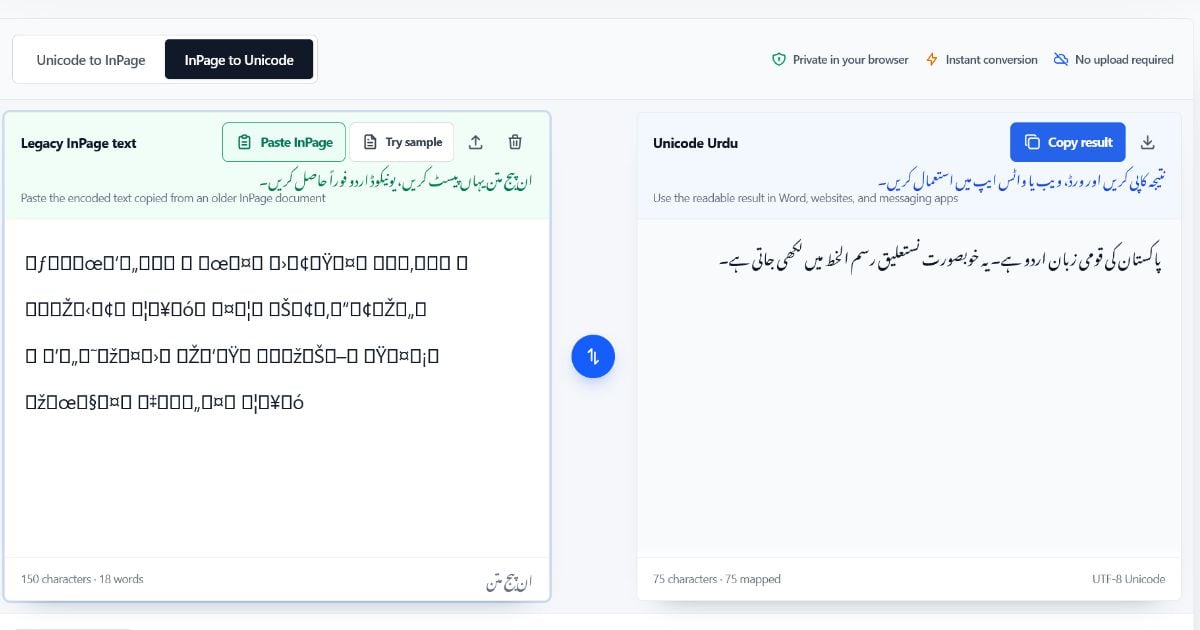
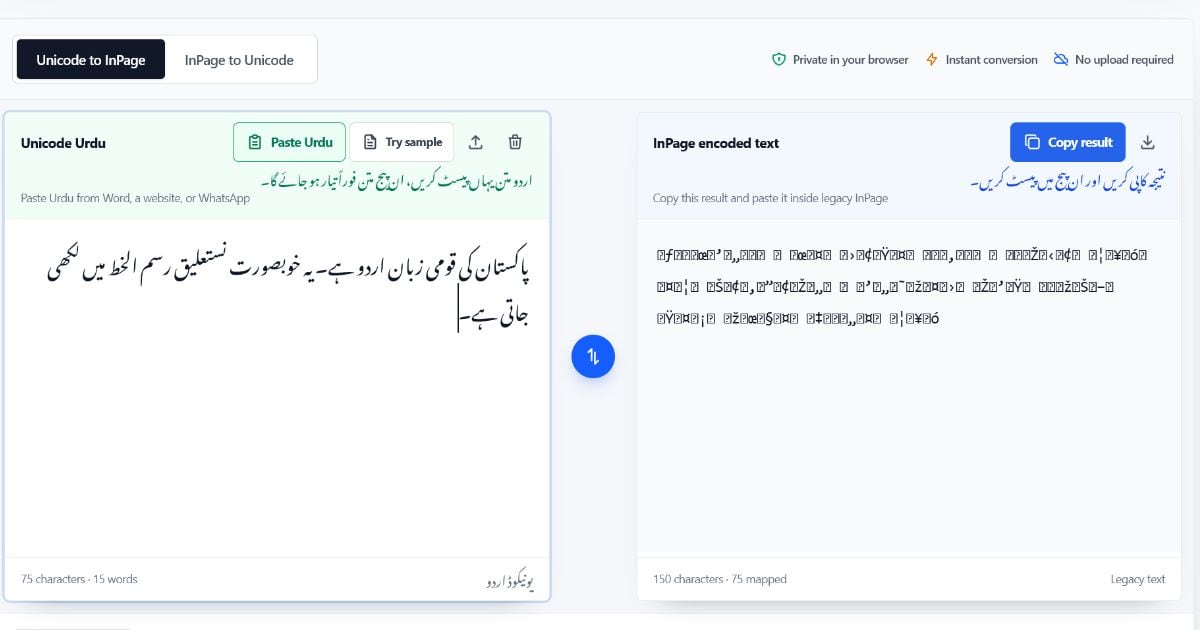
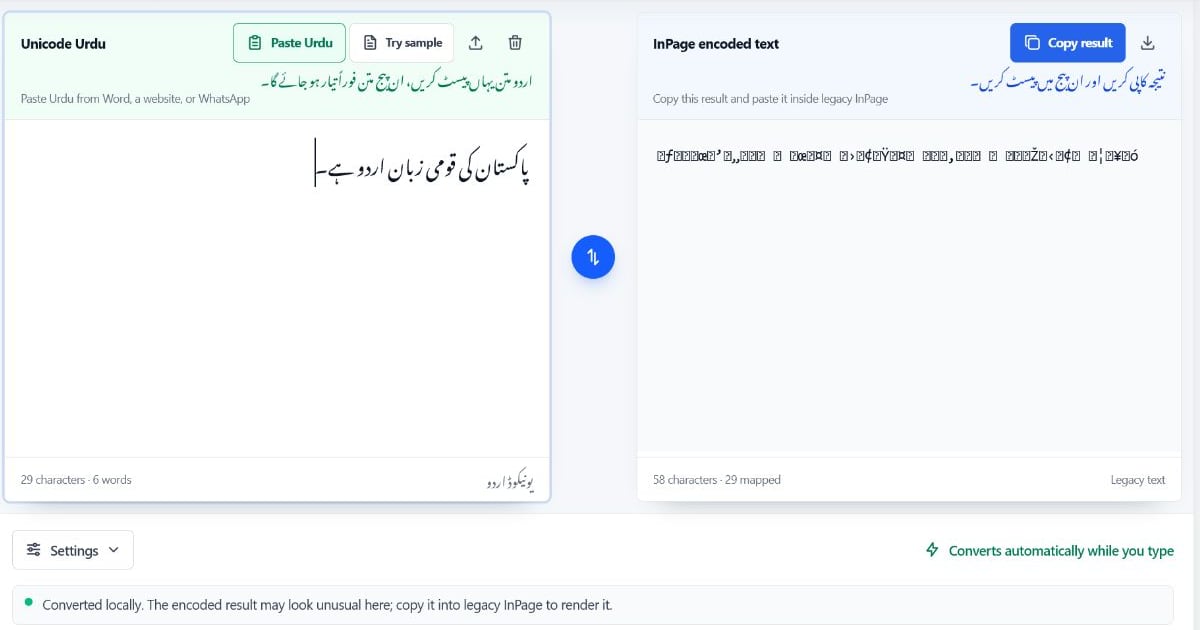
The typing pad produces readable Unicode Urdu. Older InPage publishing systems may require a legacy mapping, which can look like Latin letters or symbols outside InPage.
If your destination is a website, Word document, email, database or messaging app, copy the Unicode text directly. If a printer or publication workflow specifically requires legacy InPage-compatible text, choose Convert for InPage and verify a short sample inside the destination InPage version.
Read Unicode Urdu vs InPage text for the format differences. For the complete legacy conversion procedure, follow How to convert Unicode Urdu to InPage.
Troubleshooting Urdu Typing Problems
The Correct Word Is Not the First Suggestion
Check the remaining suggestions or try another common Roman spelling. A phonetic system cannot infer every spelling from pronunciation, particularly when several Urdu letters share a similar sound.
Urdu Appears on the Wrong Side
The online editor is right-to-left. If the text changes direction after pasting, set the paragraph direction in the destination application. Alignment alone may not fix mixed Urdu-English content.
Voice Typing Does Not Start
Confirm that the browser supports speech recognition and that microphone permission is allowed. If it remains unavailable, use phonetic input. Voice typing is an optional browser feature, not a requirement for the editor.
A Name Is Spelled Incorrectly
Names often have several valid transliterations. Select the intended spelling if it appears, or correct it letter by letter with the on-screen keyboard. Verify important names against an authoritative source.
Urdu Becomes Symbols in InPage
Do not paste ordinary Unicode directly into a workflow that expects legacy InPage values. Use the Unicode to InPage converter and test the converted result in a short destination paragraph.
Frequently Asked Questions
Do I need to install Urdu keyboard software?
No. The online phonetic input and on-screen keys run on the webpage. You only need an Urdu keyboard installation when you want system-wide typing outside the browser.
Can I type a complete Urdu sentence in Roman Urdu?
Build the sentence one word at a time by accepting the appropriate suggestions. This gives you more control over ambiguous spellings than converting an entire unreviewed sentence at once.
Is the Urdu keyboard free?
Yes. The keyboard, phonetic suggestions, Unicode editor, copy and text-download controls are free and do not require an account.
Does phonetic typing translate English into Urdu?
No. It transliterates the sound you type; it does not translate an English sentence or decide its meaning. For example, kitab can produce کتاب, but an English sentence still needs translation.
Is my typed Urdu uploaded?
Phonetic matching, on-screen key input and text editing run in the browser. Voice typing is different: depending on the browser, spoken audio may be processed by an external speech service.
Can I use the result in InPage?
Yes, through the separate conversion step. Finish the readable Unicode Urdu first, choose Convert for InPage, and verify the encoded result in the destination InPage document.
Start Typing Urdu
Begin with one Roman Urdu word, select the intended spelling, and keep the Unicode version as your master copy.
Open the free Urdu keyboard and phonetic typing pad
Need legacy publishing output afterward? Continue with the Unicode to InPage converter.