· Rehman Ahmad · Tutorials · 9 min read
How to Convert Unicode Urdu to InPage: Step-by-Step Guide
Convert Unicode Urdu from Word, websites, or WhatsApp into legacy InPage-compatible text with a free, private browser-based converter.
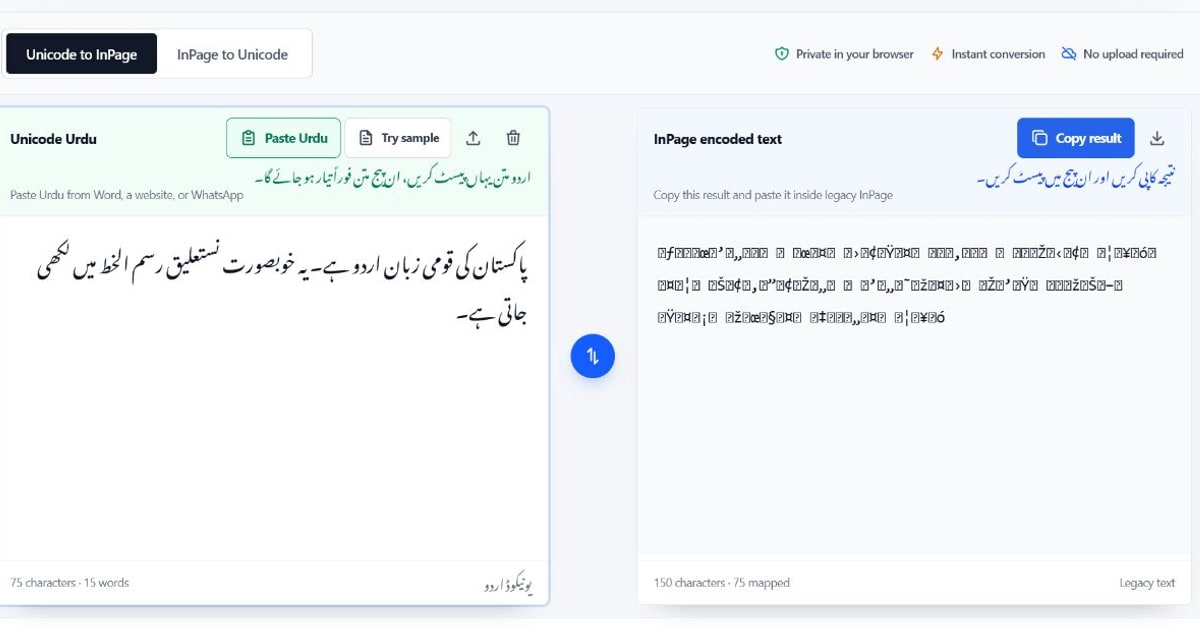
To convert Unicode Urdu to InPage, copy the Urdu text from Word, a website, WhatsApp, or another Unicode source. Paste it into the Unicode Urdu box in the free Unicode to InPage converter, then copy the encoded result and paste it into a compatible legacy InPage text frame.
Quick answer: Open the Unicode to InPage converter, keep Unicode to InPage selected, and choose Paste Urdu. Conversion happens automatically. Check the conversion summary, choose Copy result, and paste the encoded text into InPage.
اردو میں مختصر رہنمائی: یونیکوڈ اردو کو بائیں خانے میں پیسٹ کریں۔ نتیجہ خود بخود بنے گا، اسے کاپی کر کے ان پیج میں پیسٹ کریں، پھر نام، اعداد اور رموز کی جانچ کریں۔
Tested and reviewed: This guide was reviewed against the current browser-based converter on July 22, 2026. Because InPage installations and legacy encodings can differ, test a short paragraph in your destination version before converting an important document.
What You Need Before You Start
You need the Unicode Urdu source text, access to the destination InPage document, and a modern web browser. Keep the original text open until you have checked the converted result in InPage.
Unicode Urdu is the standard text used by current websites, word processors, databases, and messaging applications. It remains searchable and usually displays correctly when a suitable Urdu font is available. Older InPage workflows may instead expect character codes that only display as Urdu inside InPage.
Use this guide when your starting text looks like normal Urdu in Word, a browser, or a message:
پاکستان کی قومی زبان اردو ہے۔
If your source already looks like Latin letters or miscellaneous symbols after being copied from InPage, use the reverse InPage to Unicode mode instead. See Why Does InPage Text Look Like Symbols? for the recovery workflow.
When your Unicode source comes specifically from Word, WhatsApp, or a website, use the source-focused guide on pasting Urdu into InPage. For the practical difference between the two formats, see Unicode Urdu vs InPage text.
How to Convert Unicode Urdu to InPage
1. Prepare the Unicode Urdu Text
Open the document, webpage, message, or database record containing the Urdu you want to use. Select only the required text and copy it.
Before conversion, remove content that does not belong in the InPage text frame, such as navigation labels copied from a website, spreadsheet headers, or email signatures. You can keep Urdu punctuation, digits, line breaks, and ordinary spaces. For a long document, start with one short paragraph so you can confirm compatibility quickly.
2. Open the Unicode to InPage Converter
Go to the Unicode to InPage converter. The converter runs in the browser, so the text in the editors is processed on your device rather than uploaded for conversion or stored in a conversion history.
No account, installation, or payment is required. You can type directly, paste from the clipboard, or open a plain .txt, .text, or .uni file.
3. Select Unicode to InPage
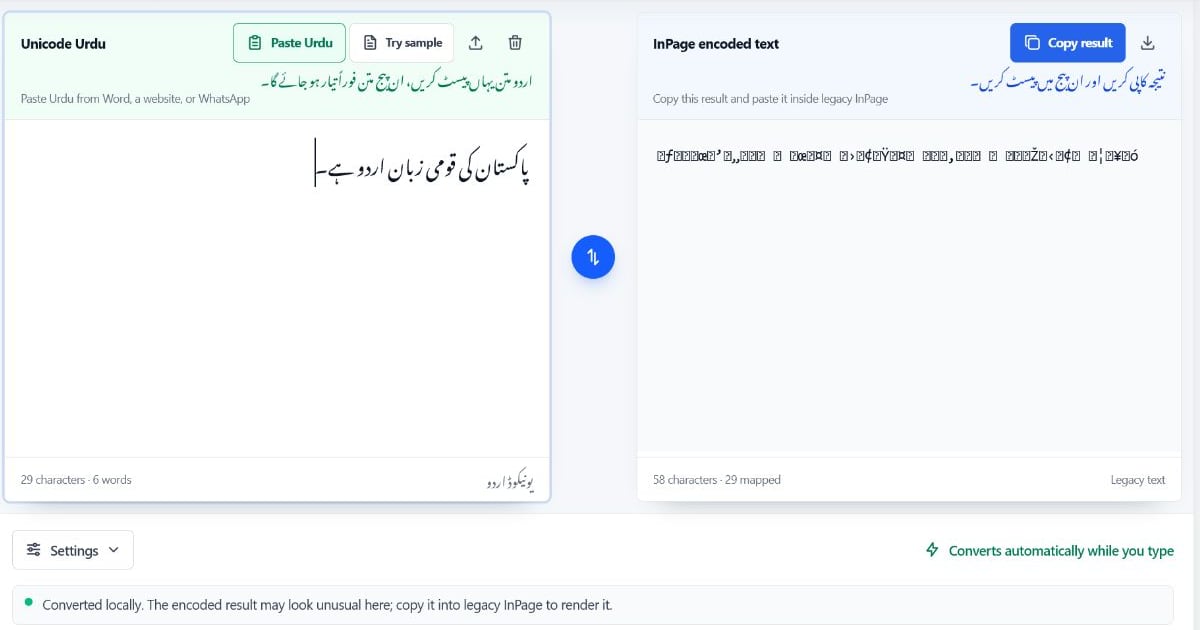
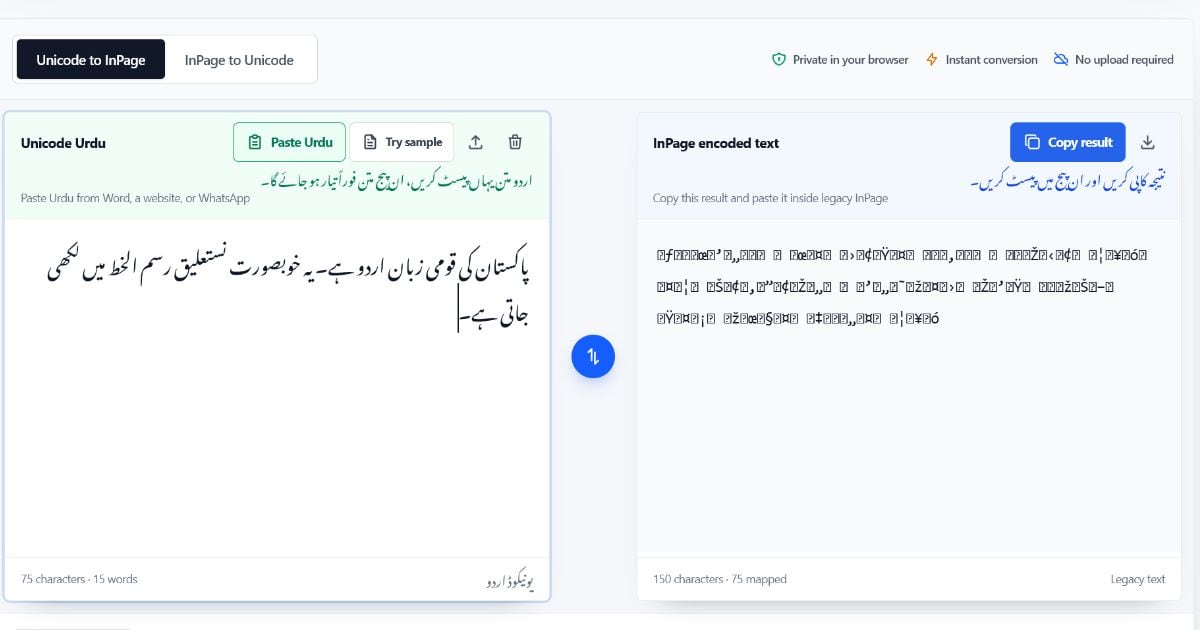
Make sure the Unicode to InPage tab is active. The left editor should be labeled Unicode Urdu, and the right editor should be labeled InPage encoded text.
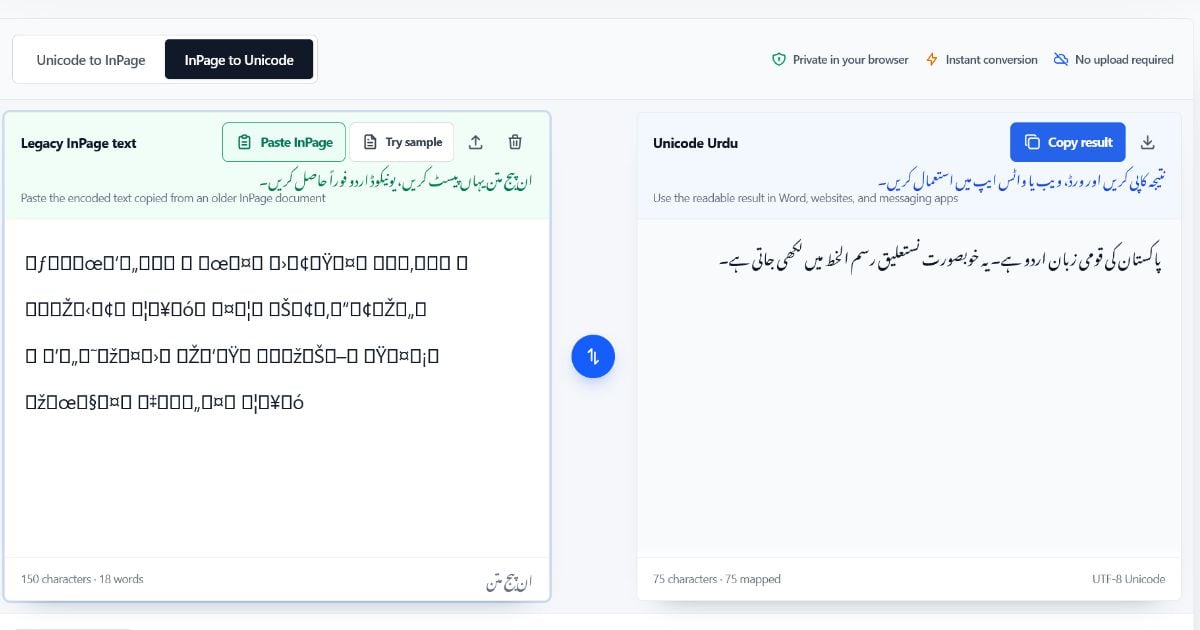
This direction matters. Unicode to InPage prepares modern Urdu text for a legacy InPage workflow. InPage to Unicode does the opposite: it recovers readable, searchable Unicode Urdu from compatible text copied out of InPage.
4. Paste or Open Your Urdu Text
Choose Paste Urdu to read the current text from your clipboard in one click. You can also click inside the left editor and use Ctrl + V, type Urdu directly, select Try sample, or use the file button to open a plain-text file.
Conversion starts automatically as soon as the input changes. Review the conversion check before copying, especially when the text contains uncommon characters, numbers, or mixed Urdu-English content.
The Normalize Urdu forms option is enabled by default. It helps reduce differences between equivalent Urdu and Arabic character forms before mapping the text. Keep it enabled for most material. Enable Remove Kashida only when you want to remove decorative elongation characters from the source.
5. Review the Conversion Check
Look below the editors after conversion. The conversion check reports whether the Urdu characters were mapped and flags characters that may need attention. It is worth reading this summary before copying a long or publication-critical result.
An unsupported character is preserved and reported instead of being silently deleted. Review names, uncommon Arabic letters, Quranic marks, specialist symbols, punctuation, dates, and mixed English text carefully. If a warning identifies one character, correct or replace that character in the source and convert again.
6. Copy the InPage-Encoded Result
Choose Copy result above the right editor. You can also use the download control to save the converted output as a plain-text file.
The output may look like Latin letters, symbols, or unreadable text in the browser. This is expected: a normal webpage does not display legacy InPage character values as Urdu. Avoid editing that encoded output in a Unicode-aware application, because changing a symbol can change the Urdu character it represents in InPage.
7. Paste the Result Into InPage
Open the destination document in InPage and click inside the required Urdu text frame. Paste the copied output using Ctrl + V or InPage’s paste command.
The text should now appear in Urdu if the InPage version, selected font, and encoding workflow are compatible. Compare it with the original Unicode source before continuing. Pay particular attention to:
- Personal names and place names
- Urdu and Western digits
- Punctuation and quotation marks
- Paragraph breaks and reading order
- Rare letters, diacritics, and religious text
Once a short sample is correct, convert the remaining text in manageable sections. Smaller sections make it easier to locate a source character if InPage renders something unexpectedly.
What the Converter Preserves
The tool focuses on plain text. It maps the core Urdu alphabet, Urdu digits, common Arabic diacritics, Urdu punctuation, and several special sequences used in legacy InPage text. Ordinary spaces and line breaks can also pass through the workflow.
| Content | What to expect |
|---|---|
| Urdu letters | Recognized characters are mapped to legacy InPage values |
| Urdu digits | Supported digits are converted with the surrounding text |
| Punctuation | Common Urdu and standard punctuation is retained where supported |
| Line breaks | Plain-text line breaks are retained, but page layout is not recreated |
| Unrecognized characters | Preserved and reported for manual review |
| English text and symbols | May remain readable, but should be checked in the destination document |
Normalization can help when a source uses Arabic code points that look similar to their preferred Urdu forms. It does not rewrite the meaning of the text, translate it, or correct spelling.
What the Converter Does Not Preserve
This is a text converter rather than an InPage document converter. It does not open, repair, or create .inp files. It also does not transfer page size, columns, text-frame positions, font sizes, colors, images, tables, styles, or other layout information from Word or a webpage.
Apply formatting after pasting into InPage. If you need to move a complete publication, keep the original files and recreate or verify the layout in the destination application. The converter should be one step in that workflow, not the only copy of your content.
Common Unicode to InPage Problems
The Result Looks Like Symbols in the Browser
That is normal for legacy InPage-encoded output. Copy it without editing and paste it into a compatible InPage text frame. The browser preview is useful for copying the character values, not for visually proofreading the Urdu result.
The Pasted Text Still Looks Like Symbols in InPage
First confirm that you used Unicode to InPage rather than the reverse mode. Then check that the cursor is inside an Urdu text frame and that the selected InPage font and version support the expected legacy encoding. Test a short, simple Urdu sentence. If that sample also fails, the destination may use a different encoding workflow.
Some Characters Are Incorrect or Missing
Read the conversion check for unsupported characters. Compare the affected word with the Unicode source and try normalizing the source text. Rare Arabic characters, specialized marks, copied formatting controls, and unusual punctuation may require manual correction in InPage.
The Urdu Text Came From a PDF
PDF text extraction can produce incorrect reading order, broken words, or characters that only look like Urdu. Paste one sentence into a Unicode-aware editor first. If it remains selectable, searchable, and correctly ordered there, convert it. If it is already corrupted, repair the extracted Unicode text before using the converter.
Numbers or English Words Appear in the Wrong Position
Urdu is right-to-left, while many numbers and English fragments are left-to-right. Mixed-direction text can behave differently across Word, browsers, and InPage. Check each mixed-language line in the destination and adjust its paragraph direction or isolated fragments there when necessary.
How to Convert InPage Text Back to Unicode Urdu
The same tool supports reverse conversion. Select InPage to Unicode, copy the legacy text directly from InPage, and paste it into the InPage encoded text editor. The readable Unicode result appears automatically in the other editor.
Use Fix reversed numbers in this reverse mode when numbers copied from a legacy document appear in the wrong order. Review the output, then copy the Unicode Urdu into Word, a website editor, a database, or another modern application.
Do not use reverse mode for an .inp file itself. Open the document in InPage first and copy the text that you want to recover.
Frequently Asked Questions
Can I convert an entire InPage .inp file?
No. The tool converts plain text, not InPage document files. Open the .inp file in InPage, copy the required text, and use InPage to Unicode. Layout, images, tables, styles, and font settings are not included.
Is the Unicode to InPage converter free?
Yes. The browser-based converter is free to use and does not require an account.
Is my Urdu text uploaded or saved?
No. Conversion runs locally in the browser, and the tool does not upload the editor contents or keep a conversion history. Text may still remain in your own clipboard or downloaded files, so handle sensitive content according to your device and workplace policies.
Which InPage versions are supported?
The converter targets legacy InPage text workflows, but exact behavior can depend on the InPage version, selected font, source encoding, and document settings. Test a short paragraph in the actual destination document before processing a full publication.
Why is Unicode Urdu better for websites and search?
Unicode assigns standard character values to Urdu letters. That allows modern applications to search, index, copy, store, and exchange the text more reliably. Legacy InPage encoding is useful when an older publishing workflow requires it, but Unicode should normally remain your master copy for websites, archives, and data exchange.
Can I paste Urdu from Word, WhatsApp, or a website into InPage?
Yes. Copy the Unicode Urdu, convert it with Unicode to InPage, and paste the encoded result into InPage. Remove unrelated webpage content before conversion and check the result in InPage, especially when the source contains mixed English, numbers, unusual symbols, or copied formatting.
Convert Your Urdu Text
Keep the Unicode source as your searchable master copy, and use legacy encoding only for the InPage workflow that needs it. Start with a short paragraph, verify it in the destination document, and then continue with the rest of the content.