· Rehman Ahmad · Tutorials · 8 min read
How to Draw on Your Screen in Windows 11 for Free
Learn three ways to draw on your Windows 11 screen, including how to write, highlight, add shapes, and point over any application with a live annotation overlay.
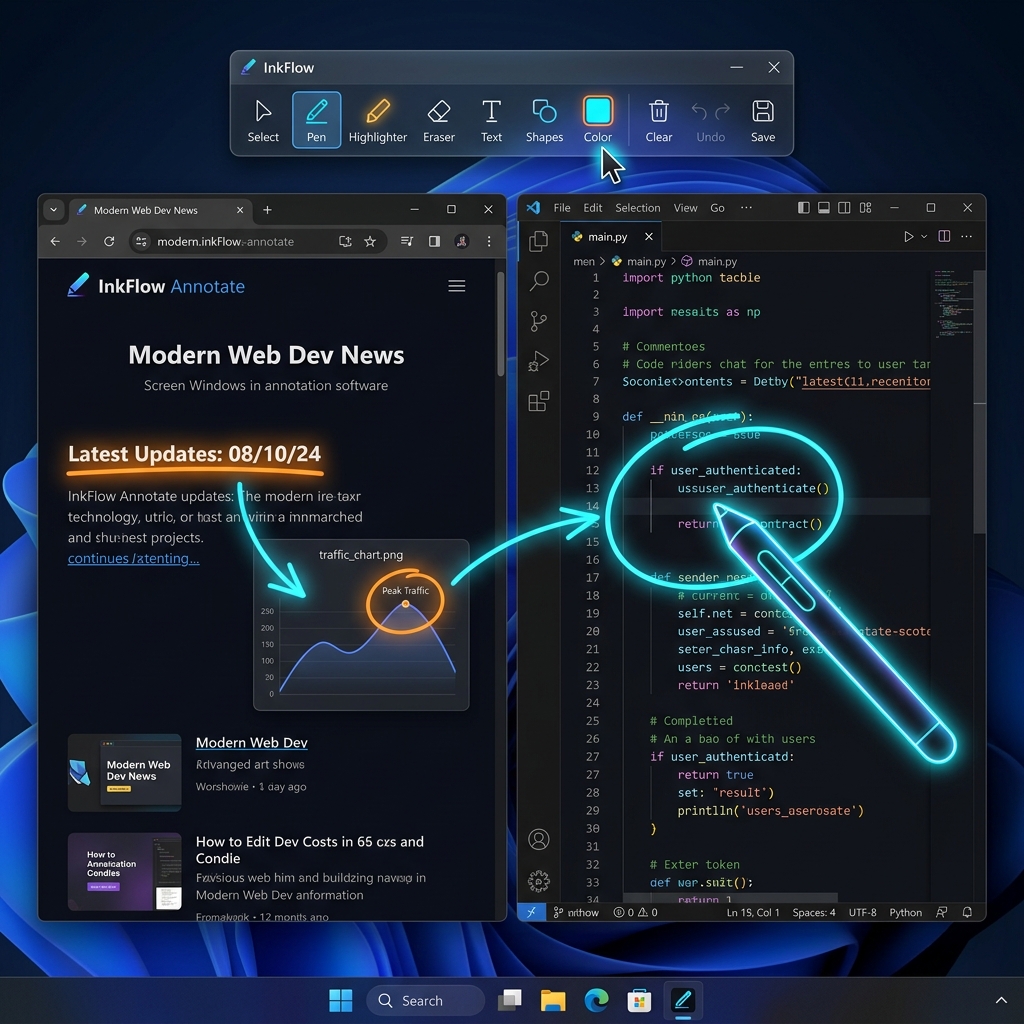
Windows 11 does not provide one universal pen that stays available over every application. To circle a button, underline text, explain a chart, or mark a slide, use a live annotation overlay, Microsoft ZoomIt, or Windows Snipping Tool.
Quick answer: To draw directly on your Windows 11 screen, use a screen annotation overlay. It places a transparent drawing layer over your desktop, allowing you to write, highlight, add shapes, or point over PowerPoint, PDFs, browsers, and other applications without editing the original content.
Tested setup: Windows 11 (64-bit) with RePen v1.0.0. This guide was last reviewed on July 19, 2026.
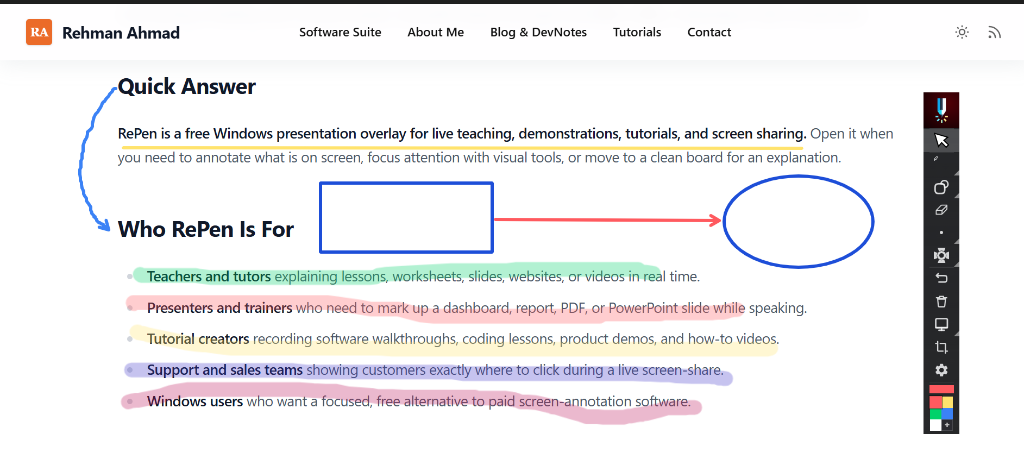
A live RePen overlay drawing over a website in Windows 11. The page remains visible beneath the annotations.
Can You Draw Directly on the Windows 11 Screen?
Yes. A live annotation tool draws over the screen while the underlying application remains open. Use it when an audience needs to watch you move between slides, browser tabs, PDF pages, and desktop software. If you only need a marked image for documentation or email, annotate a screenshot instead.
Three Ways to Draw on Your Screen
| Method | Draws live over apps? | Can save the result? | Best for |
|---|---|---|---|
| Screen annotation overlay | Yes | Depends on the tool | Teaching, presentations, tutorials, demos |
| Microsoft ZoomIt | Yes | Screenshots and recordings | Technical presentations and zoomed explanations |
| Windows Snipping Tool | No | Yes, as an image | Marked screenshots and documentation |
Use a Live Screen Annotation Overlay
A desktop annotation overlay provides a transparent canvas above your desktop, leaving the browser, slide, PDF, video, or software interface visible underneath it.
RePen is a free Windows screen annotation tool with a pen, highlighter, shapes, pointer, focus tools, and board modes.
Use Microsoft ZoomIt
Microsoft ZoomIt is a free Sysinternals utility for technical presentations. It supports zooming, native-resolution drawing, shapes, whiteboard and blackboard modes, screenshots, and recording. It is a strong choice for keyboard-driven demonstrations.
Annotate a Screenshot With Snipping Tool
Press Windows + Shift + S to capture a region, window, or the full screen. Microsoft documents pen, highlighter, shape, eraser, crop, undo, and redo controls in Snipping Tool. It is useful for instructions and bug reports, but it is not a live overlay.
How to Draw Over Any App Using RePen
The following workflow works with browsers, slide presentations, PDF readers, code editors, videos, and most normal Windows desktop applications.
1. Download and Open RePen
Download the current installer or portable build from the official RePen page. RePen supports 64-bit Windows 10 and Windows 11. Open it before starting your class, meeting, demonstration, or recording so you can confirm that the toolbar is visible.
2. Open the Application You Want to Explain
Open your PowerPoint presentation, PDF, website, video, development environment, or other desktop software. Position the content as your audience should see it before enabling a drawing tool.
3. Select the Pen or Highlighter
Choose the pen for opaque writing and freehand lines. Choose the highlighter when the original text or image must remain readable beneath the stroke. RePen also provides lines, rectangles, ellipses, and arrows for cleaner diagrams and callouts.
You can activate the pen with Ctrl + Alt + P or the highlighter with Ctrl + Alt + H when using the default shortcuts.
4. Draw Over the Active Application
Underline a sentence, circle a control, connect two ideas with an arrow, or mark the part of a chart you are discussing. Keep annotations short and purposeful; covering the screen with too many marks makes the explanation harder to follow.
5. Return to Desktop Interaction
Switch to Desktop Mode with Ctrl + Alt + D when you need to click a button, change a page, scroll a document, or move to another application. Return to the pen or another annotation tool when you are ready to explain the next item.
6. Clear, Undo, or Move to a Board
Use Ctrl + Z to undo the last action or Ctrl + Alt + C to clear the overlay. If the explanation needs more writing space, switch to a whiteboard, blackboard, grid, or ruled board. Board sessions can contain multiple pages and can be exported as a PDF for later sharing.
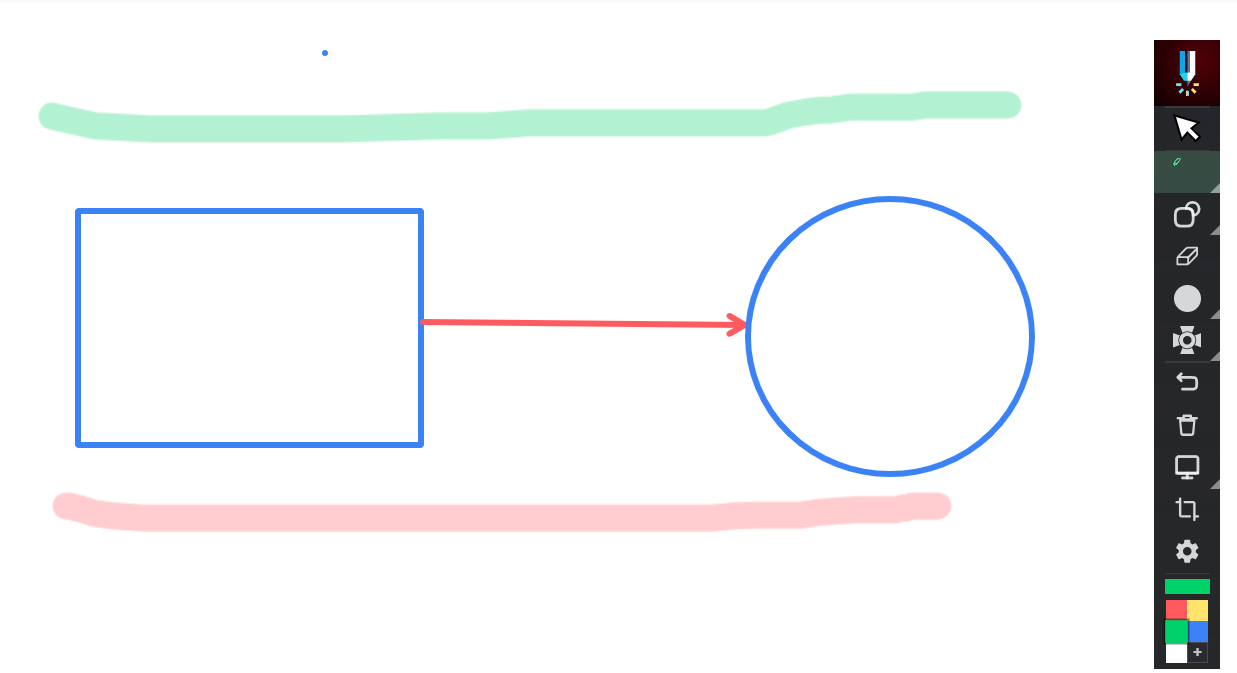
RePen provides a compact toolbar for switching between desktop interaction, freehand drawing, shapes, focus tools, and board mode.
Drawing With a Mouse vs a Stylus
A mouse is sufficient for circling buttons, drawing arrows, highlighting text, and making short marks. Reduce the line width and move slowly when you need a more controlled result. For software demonstrations and presentations, clear shapes and arrows are often easier to read than handwritten sentences.
A touchscreen or drawing tablet is more comfortable for handwriting, equations, diagrams, and longer lessons. Before an important class, verify how your pen device maps to the display and whether Windows display scaling affects pointer alignment. RePen does not currently advertise pressure-sensitive stroke control, so choose it for overlay and presentation features rather than assuming specialized drawing-tablet behavior.
How to Draw Over PowerPoint, PDFs and Websites
PowerPoint
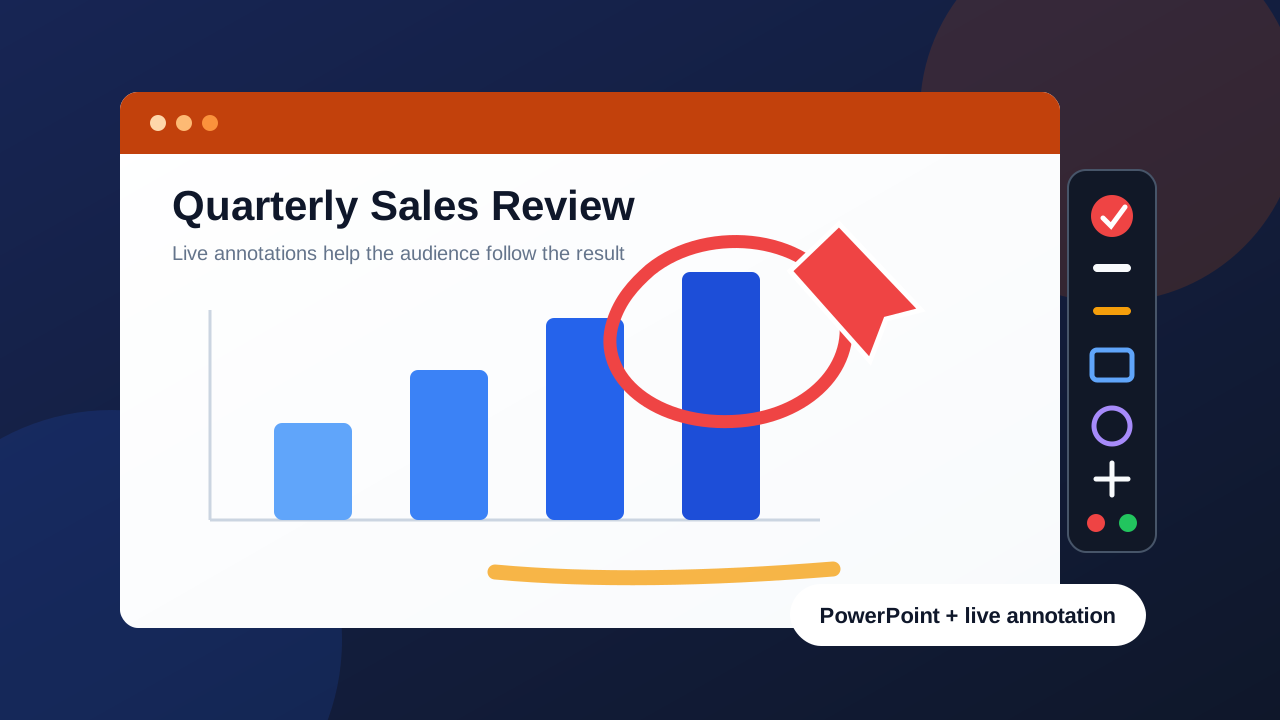
Start the slide show, then enable the RePen overlay when you need to circle, underline, highlight, or point to part of the slide. For the native pen, meeting-specific workflows, and Presenter View safety, follow the dedicated guide to annotating PowerPoint while presenting.
PDFs
Open the document in your normal PDF reader and draw over the visible page. Because the marks are placed on the screen overlay, the original PDF is not edited. Use an actual PDF editor instead when annotations must be saved inside the document.
Websites and Desktop Applications
Keep the website or application open and use the pen, shapes, spotlight, or magnifier to guide attention. Switch back to Desktop Mode before clicking links, scrolling, typing, or interacting with software controls.
Live Annotation vs Screenshot Annotation
Live annotation and screenshot annotation solve different problems:
- Use live annotation when an audience is watching you explain changing content in real time.
- Use screenshot annotation when the result needs to become a saved image, instruction, bug report, or message.
- Use a whiteboard when you need blank space for equations, diagrams, handwriting, or a longer explanation.
- Use a PDF editor when the comments must remain attached to the PDF file.
Troubleshooting Screen Overlays
The Overlay Does Not Appear Over a Full-screen App
Some full-screen applications use exclusive display modes or elevated permissions that affect overlays. Try windowed or borderless mode, and test the exact application before presenting. If an application is running as administrator, the annotation tool may also need compatible permissions.
Viewers Cannot See the Annotations
When using Zoom, Microsoft Teams, Google Meet, or recording software, share the entire screen if sharing one application window hides desktop overlays. Run a short private test recording or meeting and confirm that the annotations appear in the captured result.
The Pen Is Offset From the Pointer
Check Windows display scaling, monitor resolution, and drawing-tablet mapping. Mixed scaling across multiple monitors can cause alignment problems in desktop overlays. Test at the same resolution and scaling that you will use during the real session.
Annotations Appear on the Wrong Monitor
Move the application and annotation toolbar to the intended display before you begin. If you use multiple monitors, confirm which screen is primary and which screen is being shared or recorded.
You Cannot Click the Application Underneath
The drawing layer receives pointer input while an annotation tool is active. Switch to Desktop Mode before clicking, typing, scrolling, or changing slides, then reactivate the pen when needed.
Frequently Asked Questions
Is there a free screen pen for Windows 11?
Yes. RePen and Microsoft ZoomIt are free options for drawing on a Windows 11 screen. RePen emphasizes a visible toolbar, presentation focus tools, boards, sessions, and PDF export. ZoomIt emphasizes zooming, shortcuts, screenshots, recording, and technical demonstrations.
Can I draw over any app in Windows 11?
A desktop annotation overlay can draw over most normal Windows applications, including browsers, PowerPoint, PDF readers, code editors, and videos. Full-screen applications, elevated software, screen-sharing settings, and multi-monitor configurations may require testing.
Does drawing over a PDF change the original document?
Not when you use a screen overlay. The marks exist above the visible PDF rather than inside the file. To save comments as part of the document, use a PDF editor.
Can I draw on the screen with a mouse?
Yes. A mouse works well for arrows, shapes, circles, highlights, and short freehand marks. A stylus or drawing tablet is generally more comfortable for handwriting and detailed diagrams.
What is the difference between RePen and Snipping Tool?
RePen draws over live applications while you continue presenting or teaching. Snipping Tool captures a still image first and then lets you annotate, save, or share that image.
Download a Free Windows Screen Annotation Tool
If you need to write, highlight, add shapes, focus attention, or switch to a board while explaining something on Windows, visit the RePen download and product page. It provides the current installer and portable builds, supported Windows versions, feature details, screenshots, source code, and release information.