· Rehman Ahmad · Tutorials · 8 min read
How to Annotate PowerPoint While Presenting in Windows 11
Learn how to draw, highlight, erase, and keep ink on PowerPoint slides while presenting, plus how to annotate safely in Teams, Zoom, and Google Meet.

You can draw on PowerPoint while presenting with its built-in pen, highlighter, and laser pointer. These tools are usually enough when every annotation belongs to a slide. A Windows screen overlay is more flexible when your explanation also moves to a website, PDF, spreadsheet, whiteboard, or another application.
Quick answer: PowerPoint has a built-in pen under Slide Show → Pointer Options, allowing you to draw on slides while presenting. If you need to annotate other applications, use shapes, spotlight parts of the screen, or switch to a whiteboard, a desktop overlay such as RePen provides a broader toolset.
Tested and reviewed: PowerPoint for Microsoft 365 desktop on Windows 11, with RePen v1.0.0. Instructions and source links were checked on July 19, 2026.
Method 1: Use PowerPoint’s Built-in Pen
Use PowerPoint’s own tools first when you only need to mark the current slide. Viewers can see the ink, and desktop PowerPoint can retain it afterward.
Microsoft’s illustrated guide to drawing on slides during a presentation shows the native Slide Show toolbar and ink menu.
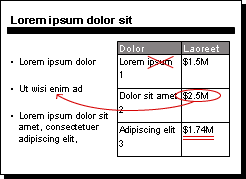
Native ink drawn during a PowerPoint Slide Show. Screenshot source: Microsoft Support.
1. Start the Slide Show
Open the Slide Show tab. Turn on Use Presenter View if you have a second display, then select From Beginning or From Current Slide. Move the pointer to the lower-left corner to reveal the controls.
2. Open Pointer Options
Select the pen-shaped button in the presentation toolbar. You can also right-click the slide and open Pointer Options.
3. Select the Pen, Highlighter, or Laser Pointer
Choose Pen for an opaque line or handwriting. Choose Highlighter when the slide content should remain readable beneath the stroke. Choose Laser Pointer for temporary emphasis that should not become saved ink.
Useful shortcuts are Ctrl + P for the pen, Ctrl + I for the highlighter, Ctrl + L for the laser pointer, and Ctrl + A to return to the arrow.
4. Change the Ink Color
Open the pen menu, point to Ink Color, and select a contrasting color. Red or dark blue normally works on a light slide; yellow or cyan is clearer on a dark slide.
5. Erase Annotations
Right-click the slide, open Pointer Options, and choose Eraser for one mark. Select Erase All Ink on Slide when you need a clean slide immediately.
6. Keep or Discard the Ink
End the presentation or press Esc. Desktop PowerPoint asks whether you want to Keep or Discard the ink annotations. Keep converts the presentation ink into slide objects that remain with the deck; Discard returns the slides to their original state.
PowerPoint for the web also supports live pen and highlighter tools, but Microsoft notes that its onscreen annotations cannot be saved back to the presentation.
Method 2: Use RePen to Annotate PowerPoint
RePen places a transparent annotation layer over the visible Windows desktop. Use it when your PowerPoint explanation includes shapes, a spotlight, a magnifier, a separate board, or content outside the slide deck.
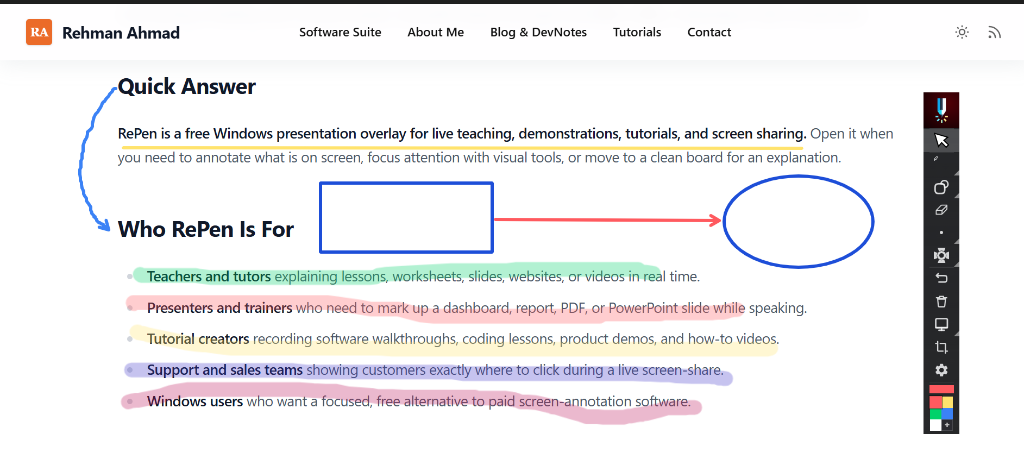
RePen’s live overlay can remain available when a presentation moves between PowerPoint and other Windows applications.
1. Launch RePen Before Presenting
Open RePen on the display you intend to share and test one pen stroke before attendees join.
2. Start the PowerPoint Slide Show
Start PowerPoint from the beginning or current slide. On one monitor, consider Slide Show → Set Up Slide Show → Browsed by an individual (window) so meeting controls remain accessible.
3. Draw, Highlight, Add Shapes, or Use Spotlight
Activate the pen with Ctrl + Alt + P or the highlighter with Ctrl + Alt + H. Use rectangles, ellipses, lines, arrows, or the spotlight for clear, short callouts.
4. Return to Normal Interaction Mode
Press Ctrl + Alt + D for Desktop Mode before advancing a slide, clicking a link, or operating meeting controls. Use Ctrl + Z to undo or Ctrl + Alt + C to clear the overlay.
RePen’s overlay marks are not written into the .pptx file. If annotations must remain attached to individual slides, use PowerPoint’s native pen and choose Keep.
Native PowerPoint Pen vs RePen
| Capability | PowerPoint native tools | RePen overlay |
|---|---|---|
| Scope | Current PowerPoint slide show | Visible Windows desktop and supported applications |
| Save slide ink | Desktop PowerPoint can keep or discard ink | Does not save overlay marks into the PowerPoint file |
| Pen and highlighter | Yes | Yes |
| Shapes | Not part of the documented Slide Show pen menu | Lines, rectangles, ellipses, and arrows |
| Focus tool | Laser pointer | Laser pointer, spotlight, and magnifier |
| Whiteboard | No dedicated board in the Slide Show pen menu | Whiteboard, blackboard, grid, and ruled boards |
| Supported applications | PowerPoint | PowerPoint, browsers, PDFs, spreadsheets, and other Windows apps |
| Best choice | Slide-specific ink you may need to retain | Broader explanations across apps and presentation tools |
You can use PowerPoint ink for marks that must stay with a slide and RePen for temporary, cross-application explanation. Avoid activating both pens at once.
How to Annotate PowerPoint During a Teams Meeting
Microsoft Teams offers two different workflows.
With PowerPoint Live, select Share, choose a PowerPoint file, and use the laser pointer, pen, highlighter, or eraser below the current slide. Microsoft states that the presenter is the person who can point and draw and that the ink is visible to meeting viewers. Its PowerPoint Live drawing guide also explains how to erase one mark or all ink on the slide.
PowerPoint Live lets you see chat, reactions, and presenter controls without exposing private notes. Microsoft says meeting recordings do not capture PowerPoint Live annotations.
For the desktop PowerPoint pen or RePen, share the screen or window containing the slide show, not Presenter View. If an application-only share omits the overlay, share the entire presentation display.
How to Annotate PowerPoint During Zoom or Google Meet
In Zoom, start the slide show and select Share. Choose either the slide-show window or the display showing the full-screen presentation. Zoom’s screen-sharing documentation confirms that presenters can share a specific application or an entire desktop and can open Zoom’s own Annotate tools from the floating sharing toolbar.
If RePen is missing from the broadcast, share the entire presentation screen. For PowerPoint’s native pen, the slide-show window is normally sufficient. A windowed slide show helps single-monitor presenters reach meeting controls.
In Google Meet, select Present now, then choose a window or your entire screen. Google’s official instructions recommend sharing a specific window or tab instead of the Meet window to avoid mirroring. Use the entire presentation screen if an overlay is missing.
How to Avoid Showing Presenter Notes
- In Teams, use PowerPoint Live when possible; its presenter view is for you, while attendees receive the presentation experience.
- With two monitors, share only the monitor displaying the full-screen slide show. Keep Presenter View on the other monitor.
- With one monitor, run the slide show in a window and share that specific window.
- Before speaking, look at the meeting application’s share preview. The preview should show only the slide.
- Disable notifications and close sensitive windows before sharing an entire screen.
Common Problems
The Annotation Is Not Visible to Viewers
An application-only share may exclude a separate overlay. Share the entire presentation display. In Teams PowerPoint Live, use its built-in drawing controls.
The Drawing Disappears
A laser pointer is temporary. Use the pen or highlighter for persistent marks, then choose Keep if the ink should remain in the deck.
The Wrong Window Is Shared
Stop sharing rather than trying to hide private content while live. Restart sharing and select the slide-show window or correct presentation monitor. Check the preview before continuing.
Presenter View Appears on the Wrong Monitor
In PowerPoint, use Display Settings → Swap Presenter View and Slide Show. Then confirm the meeting application is sharing the monitor with the slide show, not the monitor with your notes.
Frequently Asked Questions
Can I draw on a PowerPoint slide while presenting?
Yes. Start Slide Show, open the pen menu in the lower-left presentation toolbar, and select Pen or Highlighter. You can also right-click the slide and use Pointer Options.
Can I save PowerPoint annotations after presenting?
Desktop PowerPoint asks whether you want to keep or discard ink when the slide show ends. PowerPoint for the web allows live annotation but does not save that onscreen ink back to the presentation.
Can viewers annotate my PowerPoint in Teams?
In PowerPoint Live, Microsoft documents the presenter as the person who points and draws. If attendee collaboration is required, use a collaborative whiteboard or a meeting annotation feature designed for multiple participants.
Will RePen annotations be saved inside PowerPoint?
No. RePen draws on a transparent desktop overlay and does not modify the PowerPoint file. Use PowerPoint’s built-in pen and choose Keep when the ink must stay on the slides.
Should I use a mouse or stylus?
A mouse is adequate for circles, arrows, highlights, and short marks. A stylus or drawing tablet is more comfortable for handwriting, equations, and detailed diagrams.
Which Method Should You Use?
Use PowerPoint’s built-in pen when you are staying inside the slide deck or may need to keep the ink on individual slides. In a Teams meeting, use PowerPoint Live when its presenter tools meet your needs.
Use RePen when the presentation moves between PowerPoint and other Windows applications, or when you need shapes, spotlight, magnification, and a separate whiteboard. Whichever method you choose, test the exact slide-show, monitor, and screen-sharing setup before the real presentation.