· Rehman Ahmad · 9 min read
Free Digital Classroom Tools: How I Run a Paperless Classroom on Zero Budget
Free textbooks on screen, LibreOffice worksheets, one spreadsheet and WhatsApp notices — how I run a paperless classroom on zero budget.
Free Digital Classroom Tools: How I Run a Paperless Classroom on Zero Budget
I am a head teacher at a government primary school in rural Punjab, Pakistan. My school has no computer lab, no smart board, and no IT budget. What it does have is one old laptop, my phone, a second-hand projector a colleague lent me, and a free internet connection that works on good days.
With exactly those ingredients, I run a mostly paperless classroom. My students read their textbooks on screen, my lesson plans live in the cloud, my attendance and records sit in a spreadsheet, and parents get updates on WhatsApp instead of paper notes that never reach home. Nothing here cost a rupee in software.
This article is the honest version of how that works: the free digital classroom tools I actually use every day, the setup that took an afternoon, and the parts that still fail. If you teach in a school with a small budget — or no budget at all — you can copy this setup this week.
Why “Zero Budget” Is a Feature, Not an Excuse
Most “digital classroom” guides assume a smart board, a school management system, and a subscription for everything. That is not my reality, and it is not the reality of most teachers I know. When I stopped waiting for equipment that was never coming and started with what I already owned, three things changed:
- I stopped buying software. Every tool below is free and open-source, or has a genuinely free tier that does the job. No trials that expire mid-term, no “premium” wall in front of a feature I need.
- I stopped depending on one device. Because everything is free and cloud-based or portable, a lesson survives a dead laptop. I can run the same class from my phone if I have to.
- I started saving hours, not just paper. The biggest win was never the paper. It was the evenings I got back when record-keeping stopped being a pile of registers.
The rule I follow now: if a tool needs a license, a subscription, or a powerful computer, it does not enter my classroom. Everything below passes that test.
The Free Digital Classroom Tools I Actually Use Every Day
1. Free textbooks, on screen, for every student
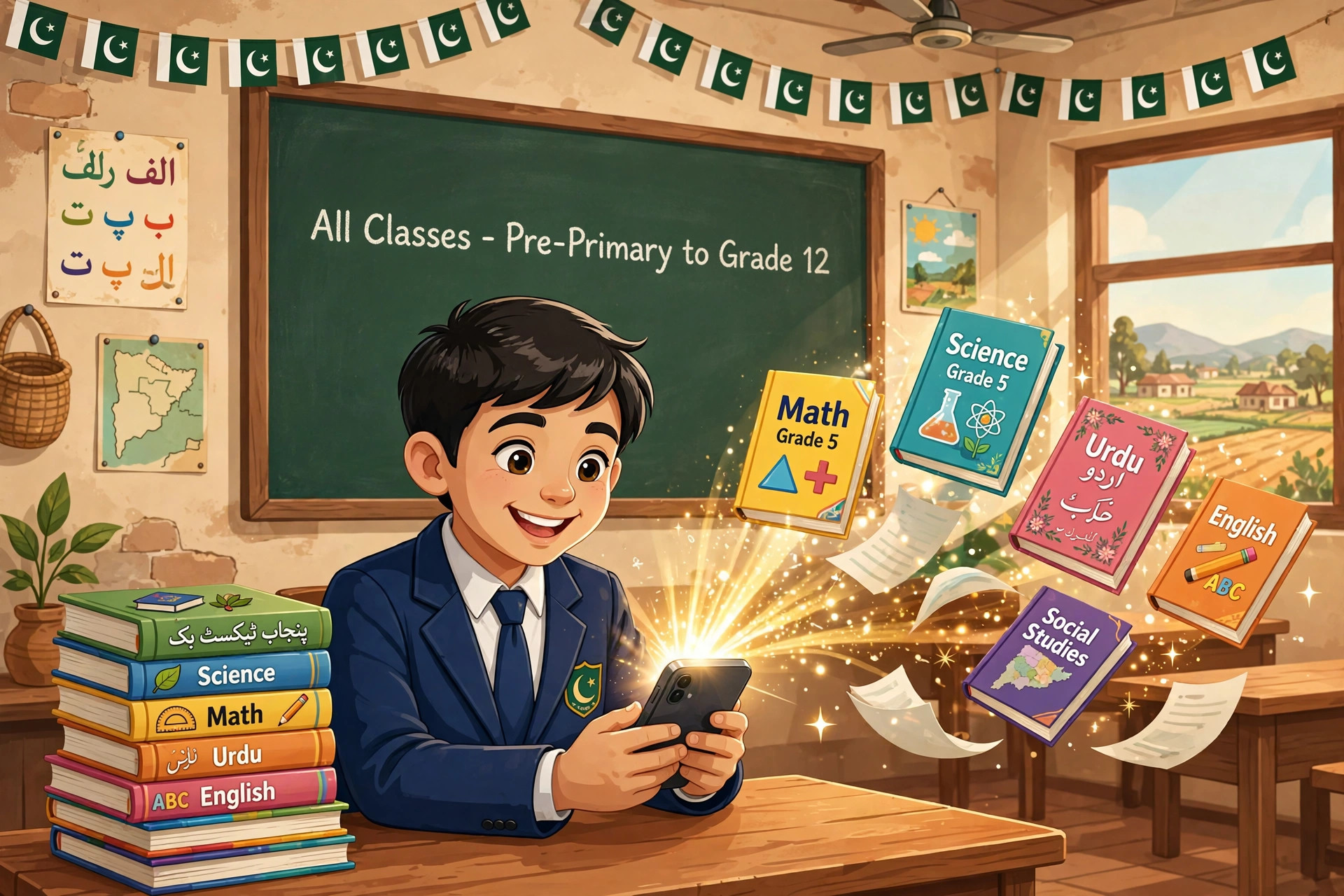
The foundation of the whole setup is that my students’ books are already digital. The Punjab Curriculum and Textbook Board publishes official textbooks, and I keep the complete collection — every class, every subject — on my site at rehmanahmad.com/textbooks/. A student who forgot their book at home is no longer stuck; we open the same chapter on the projector or on a shared phone and carry on.
In class this looks simple, and that is the point. I open the chapter, project it, and read with the students instead of reading at them. When a child asks “sir, page 42?”, I am already there. Parents use the same link at home, which means homework help no longer depends on whether the physical book survived the school bag.
2. A phone and a projector beat a smart board
I do not own a smart board, and I have stopped wanting one. A basic projector — borrowed, second-hand, or shared between classrooms — plus my phone covers 90% of what a smart board does in a primary classroom:
- Display: the textbook chapter, a worksheet, a short educational video.
- Write: I photograph the whiteboard after a lesson and share it with the class group, so the notes survive past the bell.
- Record: a two-minute phone video of a student reading aloud is worth more for assessment than any worksheet.
The trick is to keep the chain short. Phone to projector, one cable, no adapters you will lose. If a setup takes more than two minutes, you will stop using it by Thursday. I know, because I did.
3. LibreOffice for every worksheet, test, and notice
Every document my school produces — worksheets, test papers, parent notices, the timetable — is made in LibreOffice Writer and Calc. It opens every Word and Excel file parents or the education office send me, and it costs nothing, which matters when a school has five computers and zero software budget.
My practical setup: one folder per class, one template for worksheets (school name, class, date, marks at the top), and a habit of saving everything as PDF before printing or sharing. A PDF looks the same on every phone, and in a school where parents read documents on phones, that consistency is the whole game. If you need a clean, free office suite for a classroom, LibreOffice is the one I point teachers to — you can grab it from filecobra.com/app/libreoffice-suite/.
4. A fast PDF reader for the books themselves
Textbook chapters are PDFs, and the default reader on an old laptop can turn opening a chapter into a thirty-second wait while thirty children lose focus. I use SumatraPDF — it is tiny, opens instantly, and does exactly one job well. For classroom use, “opens instantly” is a feature, not a detail: every second of loading is a second of attention you do not get back. You can find it at filecobra.com/app/sumatrapdf-reader/.
5. One spreadsheet instead of five registers
Attendance, test marks, homework completion, and fee-related notes used to live in separate paper registers. Now they live in one spreadsheet with one tab per purpose. The real win is not the spreadsheet itself — it is that I can search it. “How did Ahmed do in the last three tests?” used to mean flipping pages. Now it means one filter.
I keep a local copy and a cloud copy. The cloud copy is the one I check from my phone during a parent meeting; the local copy is the one that works when the internet does not. Syncing them is a Friday-afternoon habit, five minutes, and it has saved me more than once.
6. WhatsApp as the school notice board
Paper notes home fail. They get lost, rained on, or “forgotten” in bags. A class WhatsApp group reaches parents the same evening, and — crucially — parents can reply. A parent who could never visit the school in person can now ask about homework at 8 pm, and I can answer in one line.
Two rules keep the group usable: only school matters, and I post notices at fixed times (evening, once a day) instead of dripping messages all day. A group that buzzes constantly gets muted, and a muted group is worse than no group.
7. AI for lesson prep, with a human in charge
I use AI to draft lesson plans and generate practice questions, then I edit every word before it reaches a classroom. The AI gives me a first draft in minutes; my subject knowledge decides what stays. I wrote about that workflow in detail before — how AI cut my prep time roughly in half without handing my judgment to a machine — and the short version is: AI prepares, the teacher decides, the students get the teacher’s version, never the raw output.
A Week in My Paperless Classroom
Here is what a normal week actually looks like, so you can see this is a routine, not a demo:
- Monday morning: I open the week’s chapters on the textbook site, download the PDFs I will need, and confirm the projector cable works. Ten minutes, once.
- Daily: Attendance goes straight into the spreadsheet. The chapter is projected, not dictated. Homework goes to the WhatsApp group as a photo of the board plus one line of text.
- Wednesday: Worksheet day. I adapt last term’s LibreOffice template, change the questions, export to PDF, and share it. Printing happens only for tests.
- Friday: Five minutes of syncing (local to cloud), a glance at the marks tab to spot any student sliding, and one message to parents about next week.
Nothing here is impressive on its own. Together, it is a classroom that keeps running when a book is forgotten, a register is full, or I am teaching from my phone because the laptop is being repaired.
What Still Does Not Work
Honesty matters more than a success story, so here are the failure points:
- The internet fails. On a bad day, the cloud copy is unreachable and the projector shows nothing. That is why every lesson has a local PDF backup, and why I never plan a lesson that requires a live connection.
- Not every parent is online. A small number of parents have no smartphone. For them, the paper note still exists — paperless is a direction, not a religion, and no child gets left out because their parent lacks a device.
- Old hardware is slow. A ten-year-old laptop running a modern browser with ten tabs open is a patience test. I keep tabs to a minimum, close everything I am not using, and prefer lightweight tools (like SumatraPDF) over heavy ones for exactly this reason.
- It needs one champion. If I am absent, the system wobbles, because I am the one who maintains it. I am fixing that slowly by teaching two colleagues the routine, one tool at a time.
Your Free Digital Classroom Tools Checklist
If you want to start this week, here is the order that worked for me:
- Pick one class and one subject to go paperless first — not the whole school.
- Bookmark the free textbook collection for your class: rehmanahmad.com/textbooks/
- Install LibreOffice and one fast PDF reader on the computer you actually teach from.
- Create one spreadsheet with tabs for attendance and marks; enter one week of real data before judging it.
- Start one parent group with two rules: school matters only, notices once a day in the evening.
- Keep a local backup of everything you need for tomorrow’s lesson — never depend on the internet in class.
- Teach one colleague one tool. A system one person holds is a system waiting to break.
You do not need permission, a grant, or new equipment to start. You need one afternoon, the tools above, and the willingness to run one paperless week and see what breaks. Fix that one thing, and run it again.
I write about shipping solo tools and teaching with technology on rehmanahmad.com/blog, and I collect the free classroom utilities I actually use on filecobra.com. If you try this setup, tell me which part broke first — that is usually the most useful feedback there is.