
RePen: Free Screen Annotation Tool for Windows
Free Windows screen annotation tool for teachers, presentations, demos, and live tutorials.

Why I Engineered This
Developer's Note by Rehman Ahmad
"I built RePen for teachers, presenters, and Windows users who need a practical way to explain what is on screen. The goal is simple: open the tool, annotate over any app, keep attention on the important detail, and use the core presentation features without a subscription."
Draw and Annotate Over Any Windows Application
RePen is a free screen annotation tool for Windows 10 and 11. Draw, highlight, add shapes, use a spotlight, and explain ideas directly over PowerPoint, PDFs, browsers, code editors, and other desktop applications.
Instead of taking a screenshot and marking it up in an image editor, RePen places a transparent drawing layer over your active desktop. You can explain ideas during live tutorials, software demonstrations, presentations, meetings, and online classes without leaving the application you are showing.
Screen Annotation Tools for Teachers and Presenters
🖊️ Draw & Highlight Anywhere
Use the freehand Pen and Highlighter tools to circle buttons, underline text, or scribble formulas. Choose from a curated color palette and adjust line thickness dynamically using the floating overlay menu.
📐 Shape & Arrow Tools
Draw perfect rectangles, lines, and circles to structure your live annotations. Great for mapping out block diagrams or drawing connections between elements on screen.
Whiteboard, Spotlight and PDF Export
🔦 Spotlight & Focus Tools
Guide your audience’s eyes to the exact line of code or chart value you are discussing:
- Spotlight: Dims the rest of the screen, highlighting a resizable circular area.
- Laser Pointer: Follows your mouse cursor with a highly visible red glow.
- Magnifier: Zooms in on complex UI controls and small text.
📋 Whiteboard & Multi-page Sessions
Need more space to write or explain? Toggle Board Mode to open a clean writing workspace. Choose between:
- Whiteboard or Blackboard layouts.
- Grid lines (for math/graphs) or Ruled lines (for handwriting).
- Multi-page support: Add up to 8 pages per session and easily navigate between them.
📄 One-Click PDF Export
Save your whiteboard calculations, diagrams, and session notes directly as a shareable, high-quality PDF document. Excellent for sending lecture notes to students or recap sheets to colleagues.
Made for Teachers, Developers and Presenters
🎓 Teachers & Online Tutors
Write over digital textbooks, worksheet PDFs, and educational websites. Switch to grid boards for math tutorials and export the complete session as a PDF for students to study later.
💻 Software Developers & Technical Trainers
Highlight code syntax, draw arrows indicating user flows, and use the Spotlight tool to focus on terminal outputs during walkthrough recordings.
💼 Presenters & Remote Teams
Annotate slide decks during PowerPoint presentations without dropping slideshow mode. Highlight financial charts, circle core bullet points, and clear markings with a single click.
How to Use RePen
Open RePen before your class, demonstration, or presentation, then select a drawing tool from the floating toolbar. Use these keyboard shortcuts to change tools without interrupting your presentation:
| Tool | Shortcut / Hotkey | Purpose |
|---|---|---|
| Desktop Mode | Ctrl + Alt + D | Temporarily click-through the drawing overlay |
| Pen / Pencil | Ctrl + Alt + P | Draw freehand strokes over the desktop |
| Highlighter | Ctrl + Alt + H | Swipe transparent colors for emphasis |
| Spotlight | Ctrl + Alt + S | Dim the screen except for a focused spotlight |
| Clear Screen | Ctrl + Alt + C | Instantly delete all overlay markings |
| Undo / Redo | Ctrl + Z / Ctrl + Y | Revert or repeat your last drawing actions |
RePen Features at a Glance
Draw Over Any App
Write and sketch directly over browsers, PowerPoint, PDFs, IDEs, and live desktop apps.
Presentation Focus Tools
Guide attention with spotlight, laser pointer, magnifier, and clean click-through workflows.
Board Modes and Sessions
Switch to whiteboard, blackboard, grid, and ruled backgrounds, then save multi-page sessions.
PDF Export
Export board sessions into shareable PDFs for students, demos, and follow-up notes.
Frequently Asked Questions
Is RePen completely free?
Yes. RePen is a 100% free screen annotation tool. There are no subscriptions, ads, or locked features. The source code is publicly accessible on GitHub.
Can I draw over a PowerPoint presentation?
Yes. When running PowerPoint in full-screen presentation mode, RePen operates as a transparent overlay, allowing you to highlight slides and draw diagrams while presenting.
Does RePen support high-DPI monitors?
Yes. RePen scales automatically to fit 4K screens, multiple display configurations, and high-DPI setups commonly used in classroom projectors and high-end workspaces.
How do I share my notes after a meeting?
You can export any whiteboard session directly to a PDF using the export button on the top toolbar of the Board mode, making it easy to share notes via email, Slack, or Google Classroom.
System Requirements
Windows 10 or Windows 11 (64-bit). RePen is intended for desktop use during classes, presentations, screen sharing, tutorials, and demonstrations.
Known Issues
Before presenting, test RePen with your screen-sharing software and the application you plan to show. Overlay behavior can vary with full-screen applications and Windows display settings.
RePen Screen Annotation Toolbar
RePen keeps annotation tools close at hand without blocking your work. Pick a pen, draw a shape, highlight a detail, or switch to board mode in one click.
Pointer Mode
Interact with your desktop and click buttons normally without writing.
Pen & Pencil
Draw freehand lines and annotations over any running application.
Highlighter
Swipe transparent marker lines to underline or call out text.
Rectangles & Shapes
Quickly drag to draw perfect rectangles, lines, and ellipses.
Stroke Eraser
Precisely click and remove individual drawings and shapes.
Laser Pointer
Guide focus with a clean, red tracking dot that follows your cursor.
Spotlight Overlay
Darken the screen except for a customizable highlighted circle.
Whiteboard Toggle
Open clean blackboard, grid, and ruled writing screens instantly.
RePen Screenshots
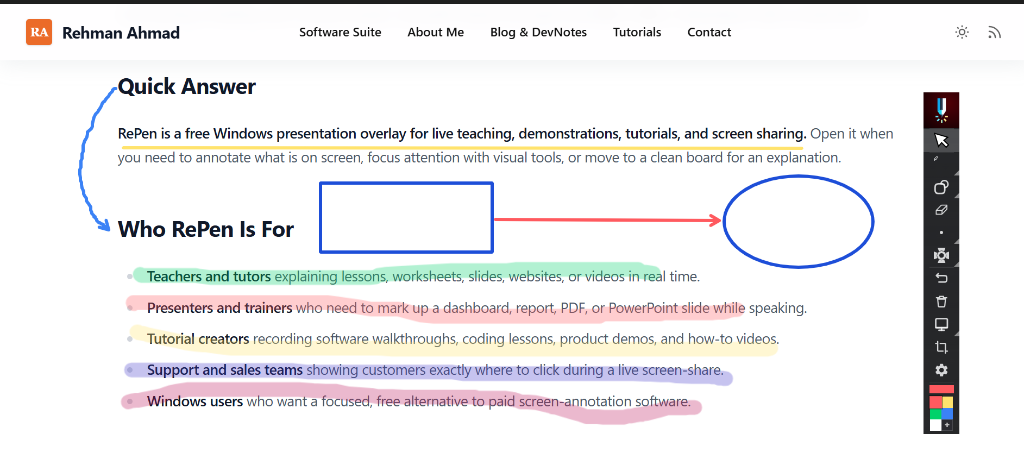
Core screen overlay in action — write notes, draw shapes, and highlight over browser pages, PDFs, and running applications.
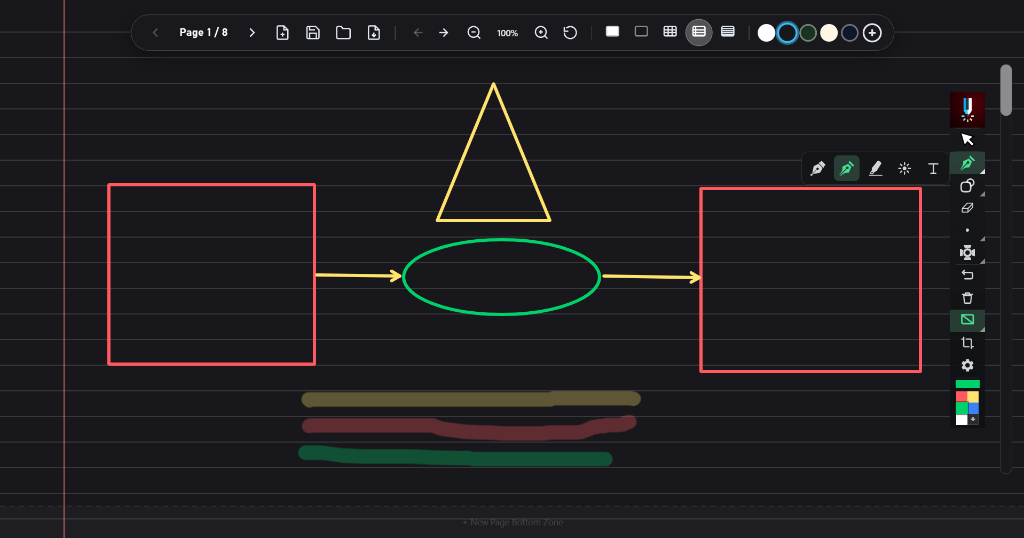
Whiteboard and blackboard modes — switch to grids, ruled lines, or plain screens with multi-page boards for lectures.
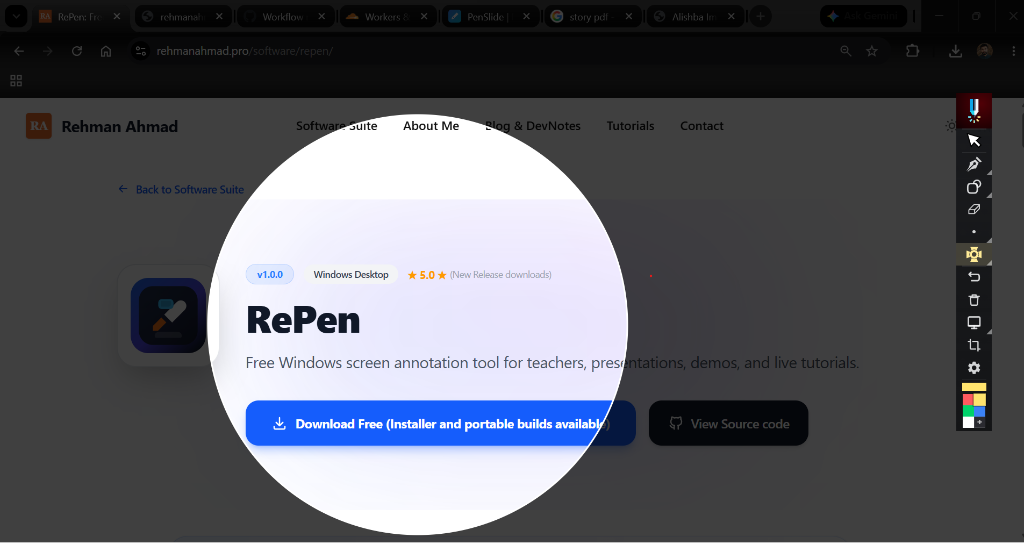
Spotlight and focus tools — dim the screen or zoom in using the magnifier to guide viewer attention to specific details.
Download RePen for Windows 10 and 11
Use the official download link below. Review the version, system requirements, and source-code link before installing.
Need custom feature integration or enterprise deployment? Contact Rehman.